26 Essential Title Design Keyboard Shortcuts for Premiere Pro

Want to kick your title design into overdrive? Here are 26 must-know keyboard shortcuts for Premiere Pro.
You can always tell an experienced editor from a novice by how much they use the keyboard. Keyboard shortcuts save you a few seconds here or there, but over the course of a project those seconds can add up to minutes, hours, or even days. Ironically one of the areas where I see editors using the mouse the most is in title design. Don’t fall into this trap. Save time and your sanity with these 26 title design keyboard shortcuts for Premiere Pro.
1. New Title

What it Does: Creates a new title in your project.

| Mac | Cmd+T |
| PC | Ctrl+T |
2. Bold

What it Does: Bolds any selected text.

| Mac | Cmd+B |
| PC | Ctrl+B |
3. Italic

What it Does: Italicize any selected text.

| Mac | Cmd+I |
| PC | Ctrl+I |
4. Underline

What it Does: Underlines any selected text.

| Mac | Cmd+U |
| PC | Ctrl+U |
5. Increase Kerning by One Unit
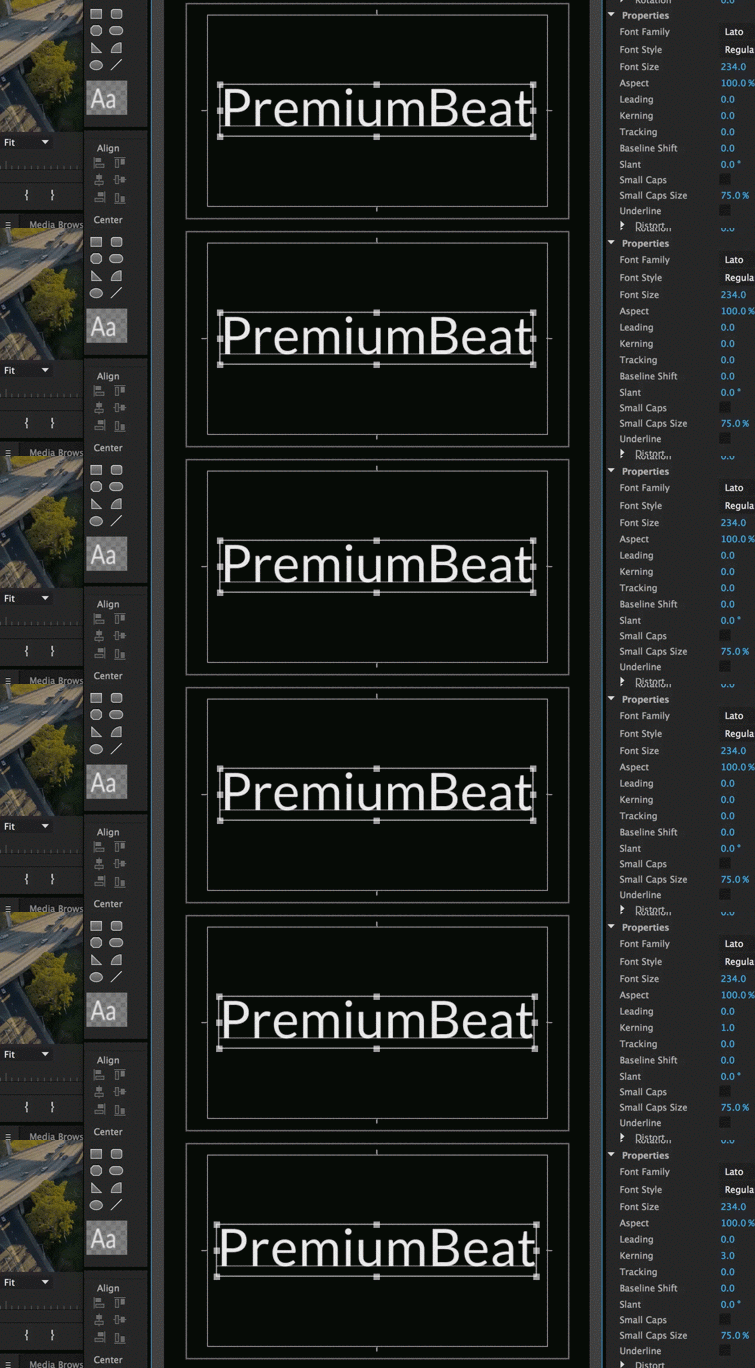
What it Does: Increases spacing between letters by one unit.

| Mac | Opt+Right |
| PC | Alt+Right |
6. Increase Kerning by Five Units
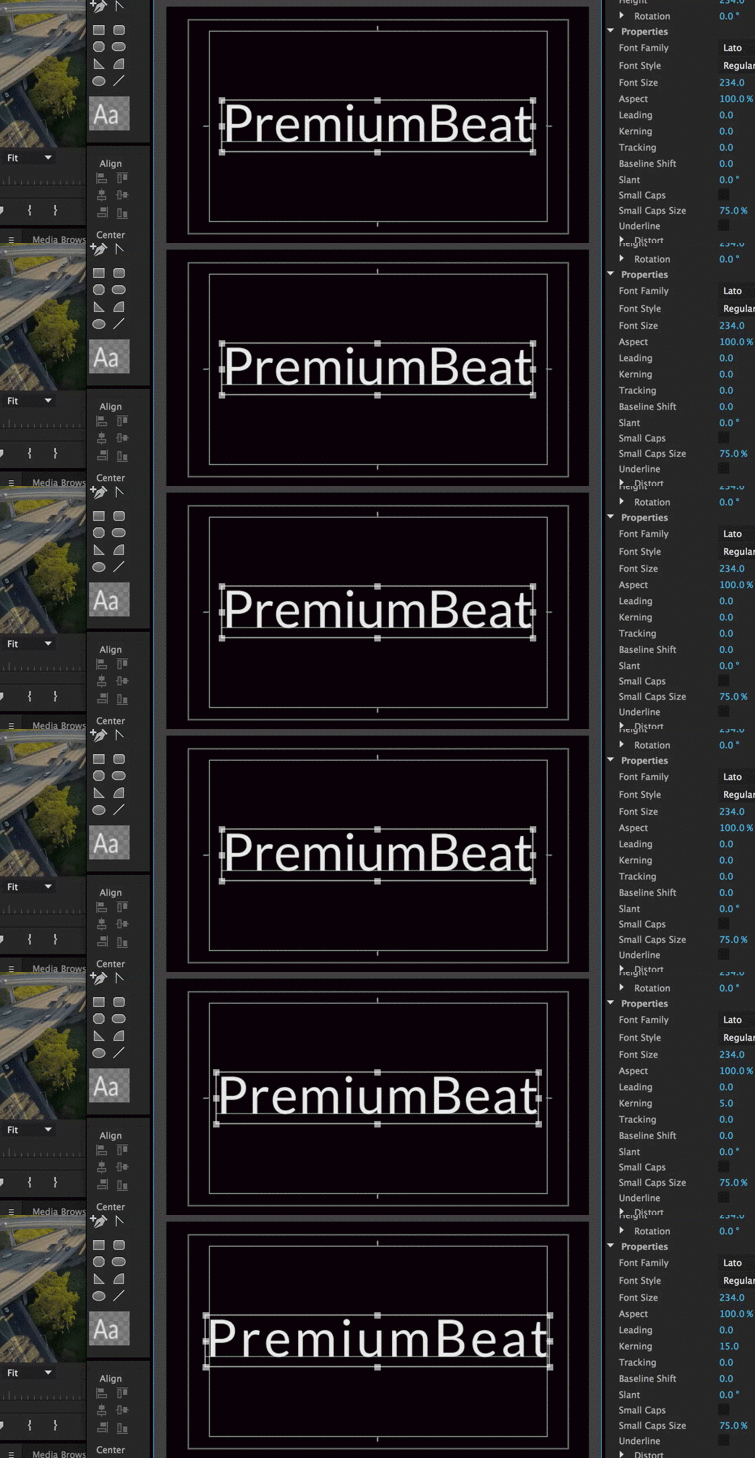
What it Does: Increases spacing between letters by five units.
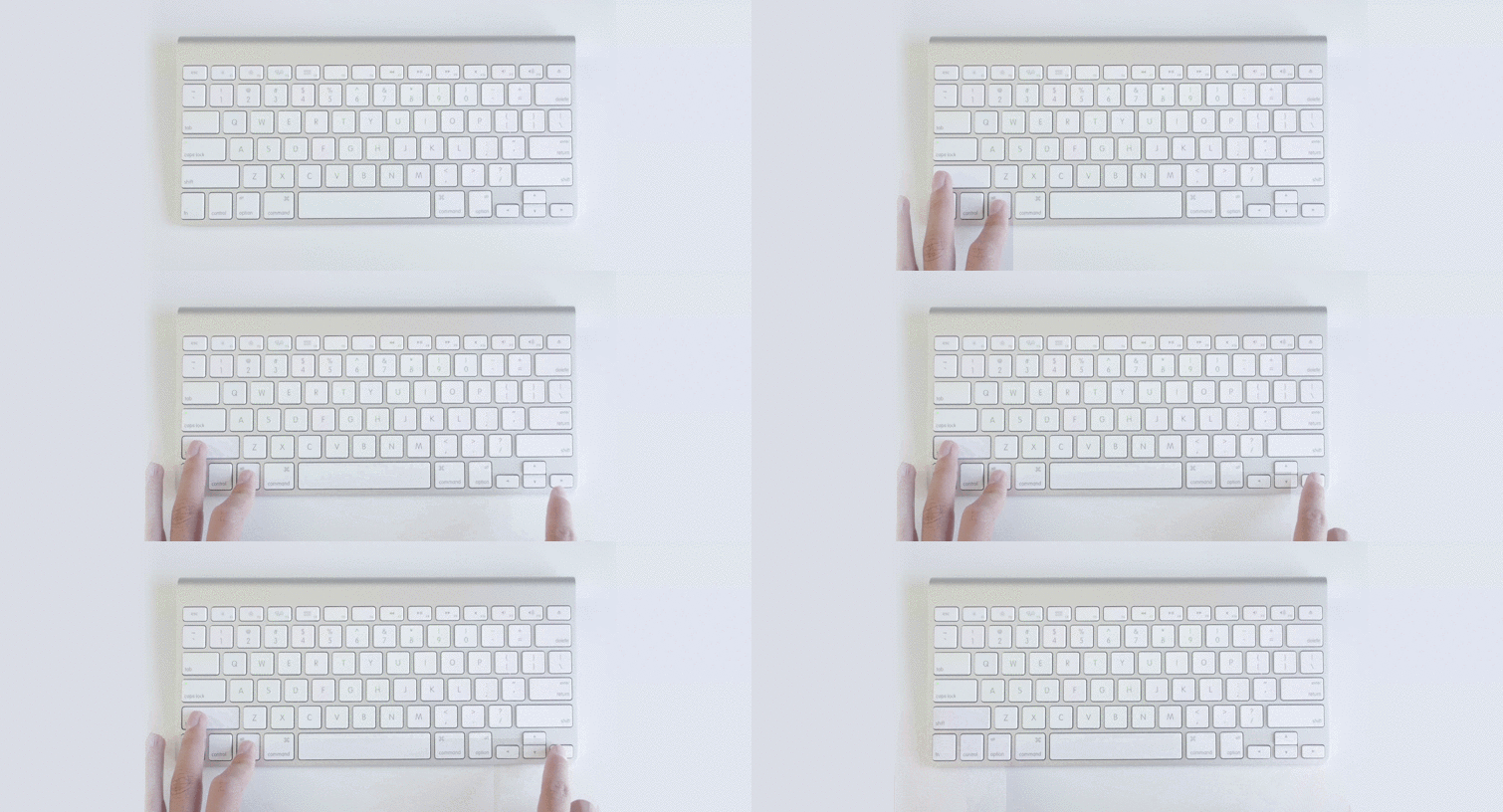
| Mac | Opt+Shift+Right |
| PC | Alt+Shift+Right |
7. Decrease Kerning by One Unit

What it Does: Decreases spacing between letters by one unit.
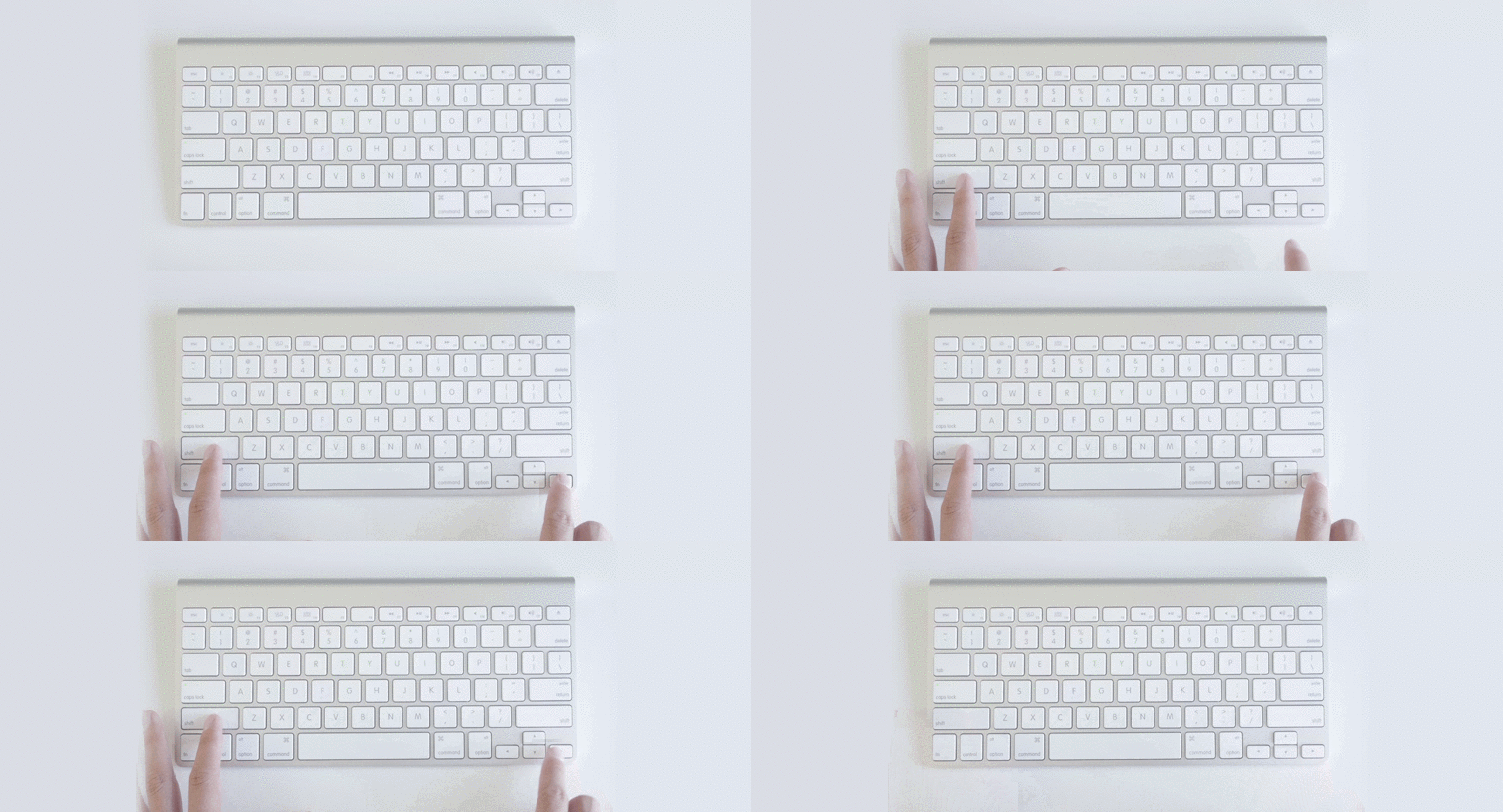
| Mac | Opt+Left |
| PC | Alt+Left |
8. Decrease Kerning by Five Units

What it Does: Decreases spacing between letters by five units.
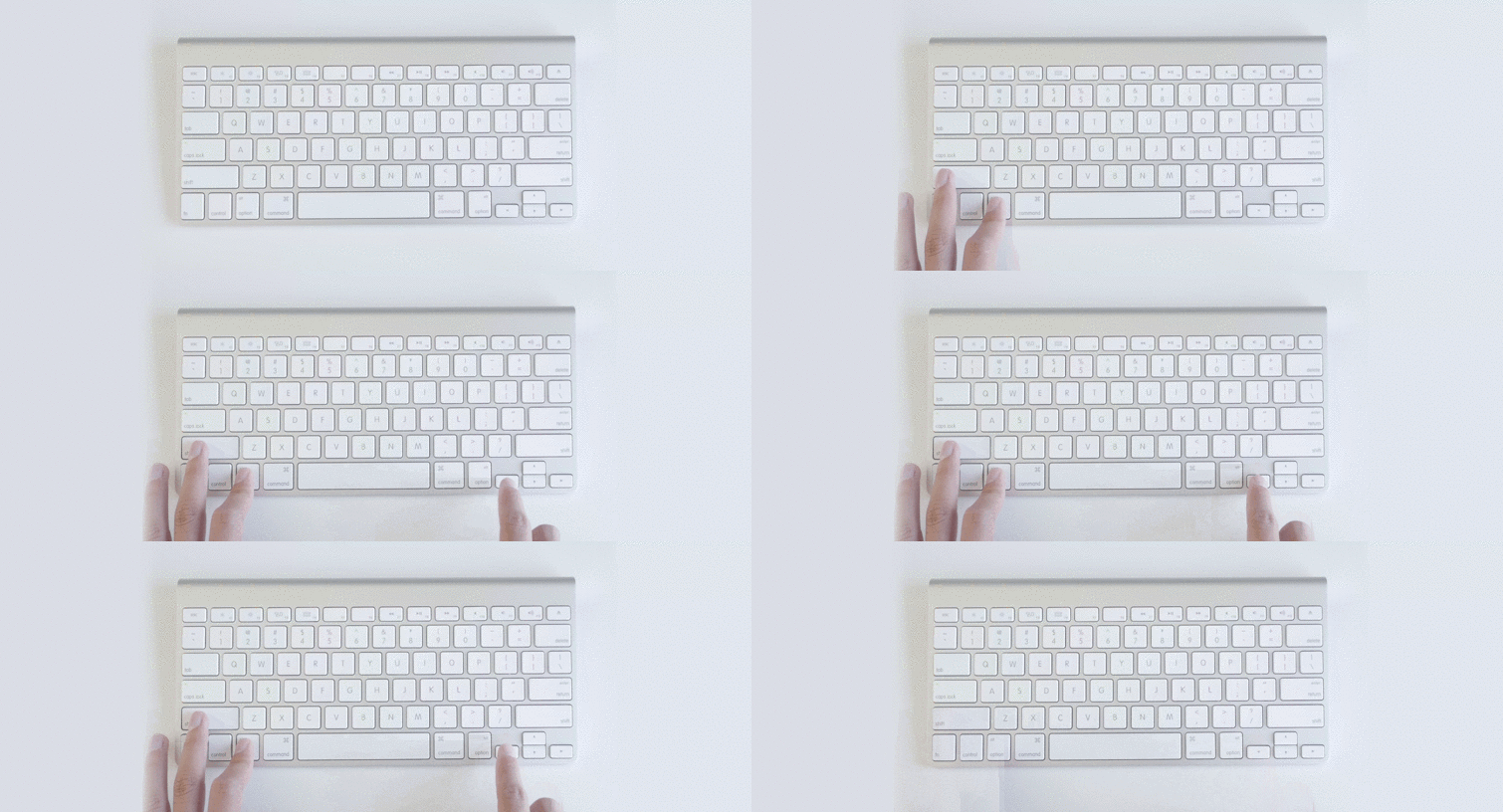
| Mac | Opt+Shift+Left |
| PC | Alt+Shift+Left |
9. Increase Leading by One Unit
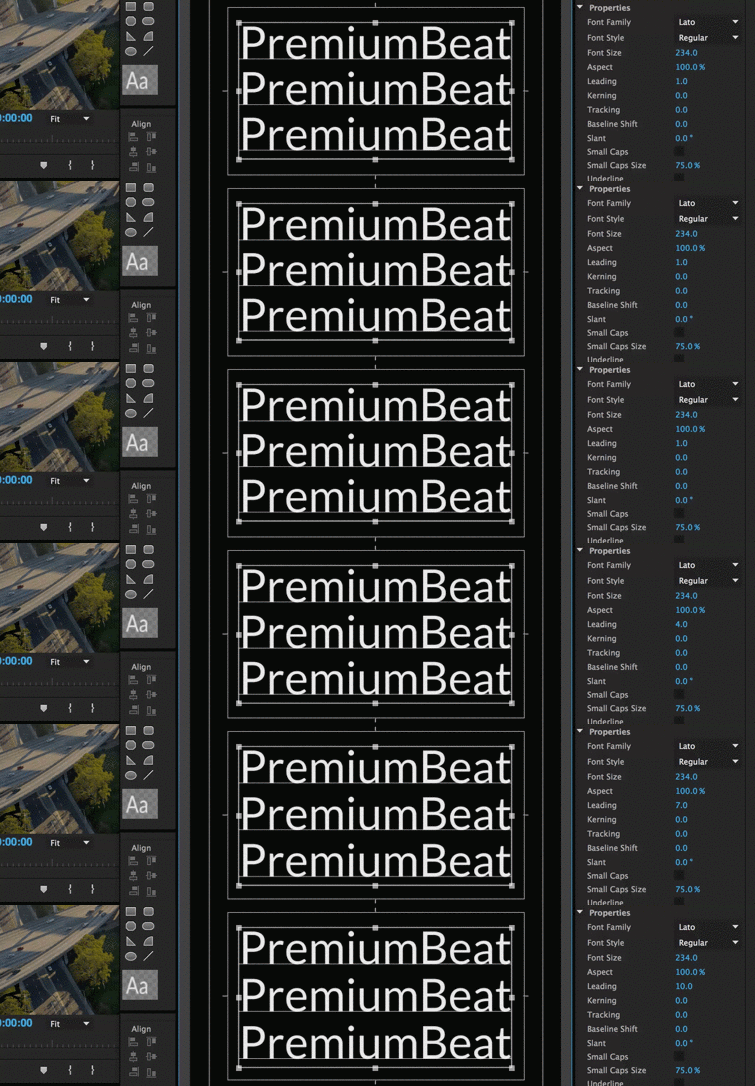
What it Does: Increases spaces between lines by one unit.
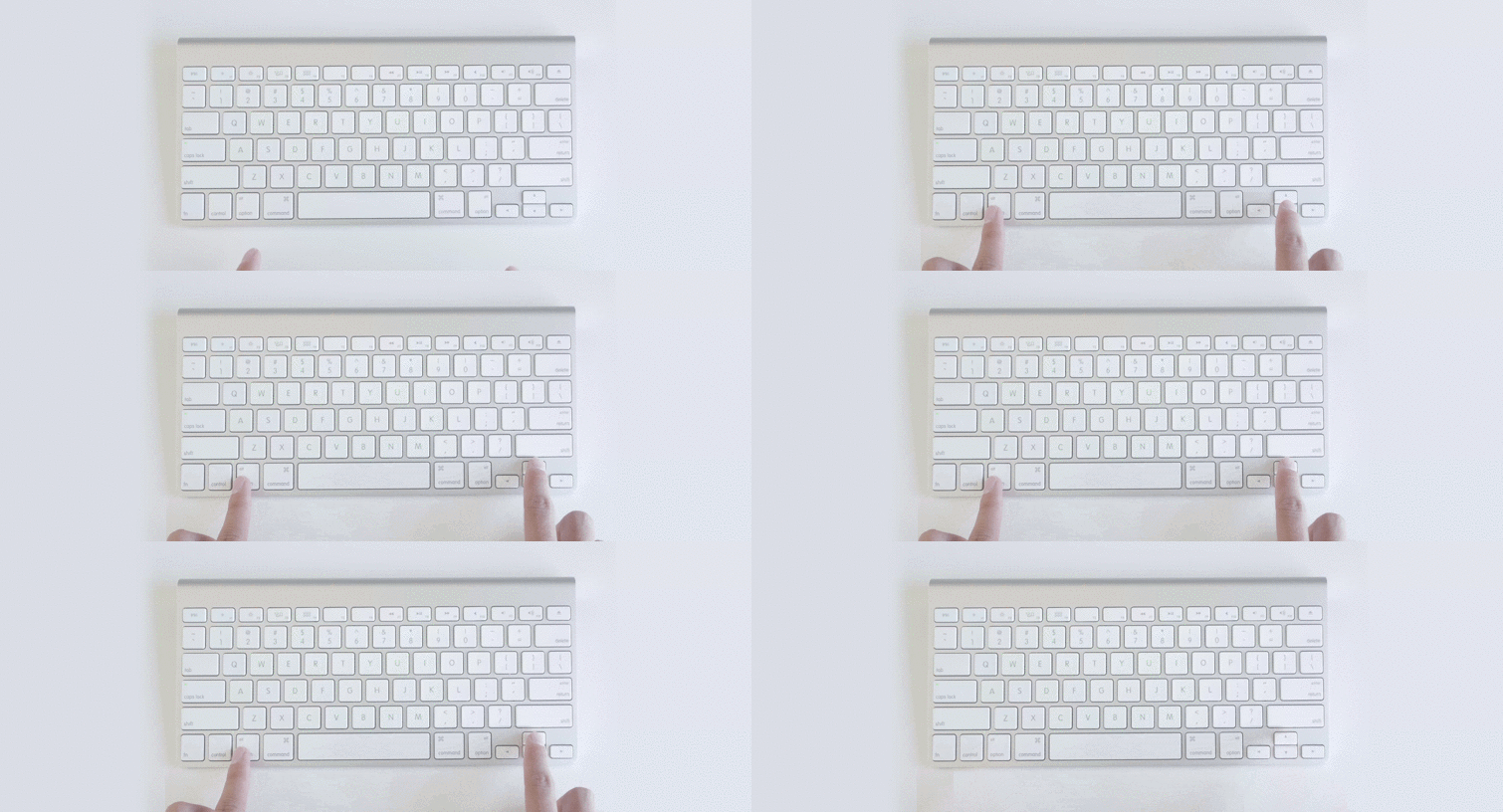
| Mac | Opt+Up |
| PC | Alt+Up |
10. Increase Leading by Five Units

What it Does: Increases spaces between lines by five units.

| Mac | Opt+Shift+Up |
| PC | Alt+Shift+Up |
11. Decrease Leading by One Unit

What it Does: Decreases spaces between lines by one unit.
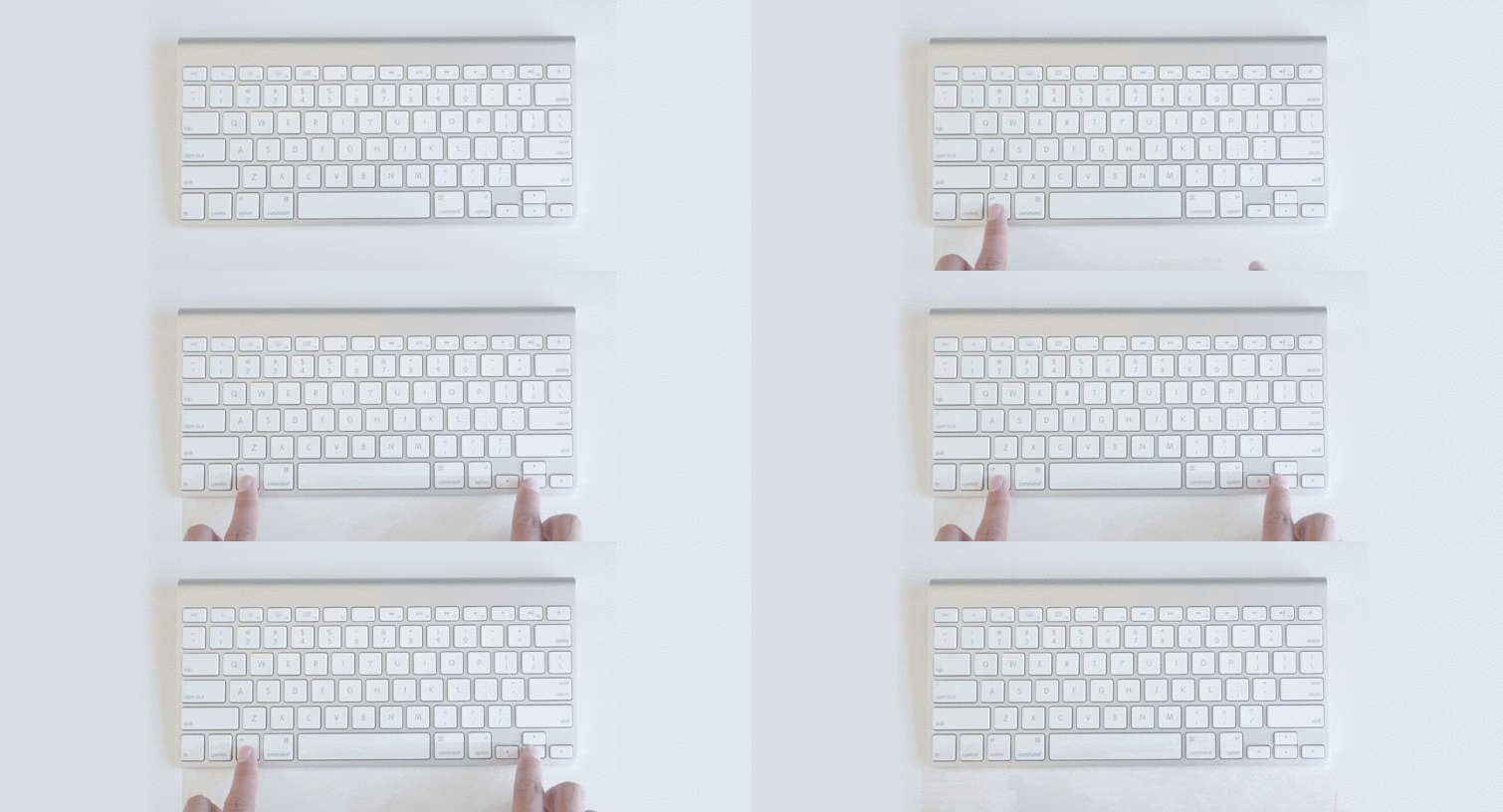
| Mac | Opt+Down |
| PC | Alt+Down |
12. Decrease Leading by Five Units

What it Does: Decreases spaces between lines by five units.

| Mac | Opt+Shift+Down |
| PC | Alt+Shift+Down |
13. Increase Text Size by One Point

What it Does: Increases size of the text by one point.

| Mac | Opt+Cmd+Right |
| PC | Ctrl+Alt+Right |
14. Increase Text Size by Five Points

What it Does: Increases text size by five points.

| Mac | Opt+Shift+Cmd+Right |
| PC | Ctrl+Alt+Shift+Right |
15. Decrease Text Size by One Point
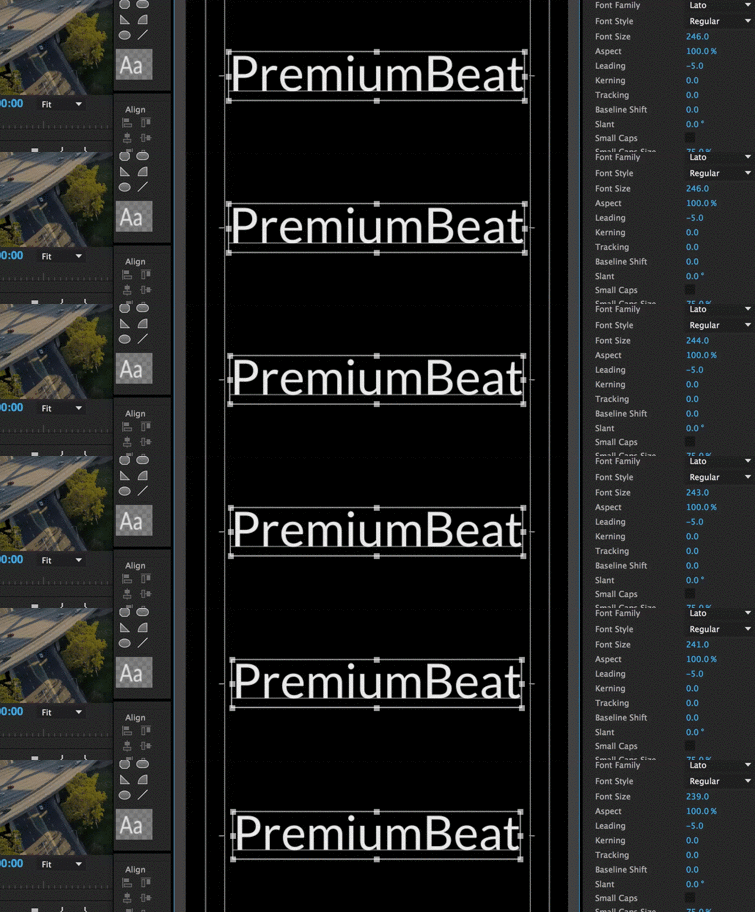
What it Does: Decreases text size by one point.
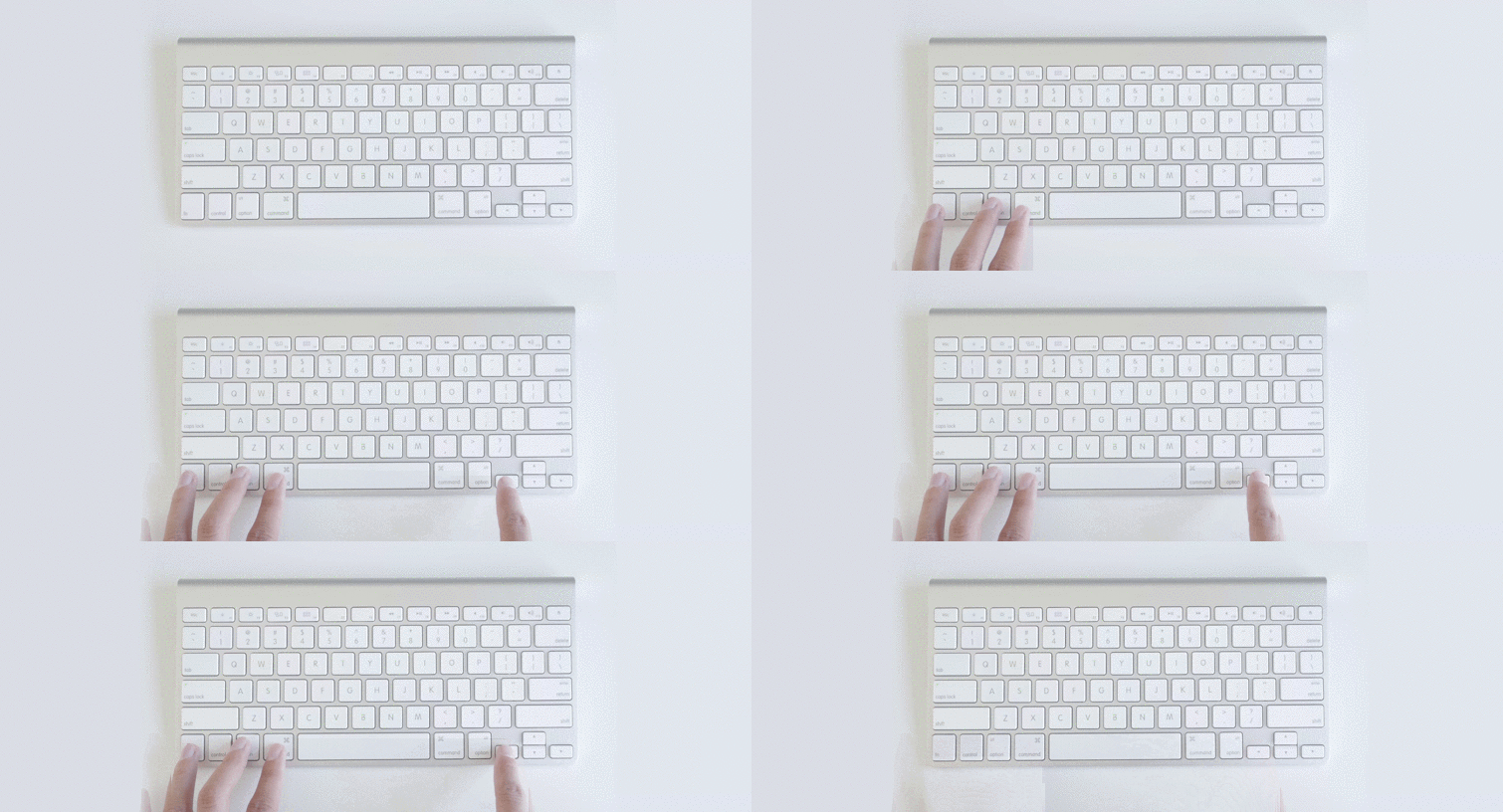
| Mac | Opt+Cmd+Left |
| PC | Ctrl+Alt+Left |
16. Decrease Text Size by Five Points

What it Does: Decreases text size by five points.

| Mac | Opt+Shift+Cmd+Left |
| PC | Ctrl+Alt+Shift+Left |
17. Nudge Down One Point
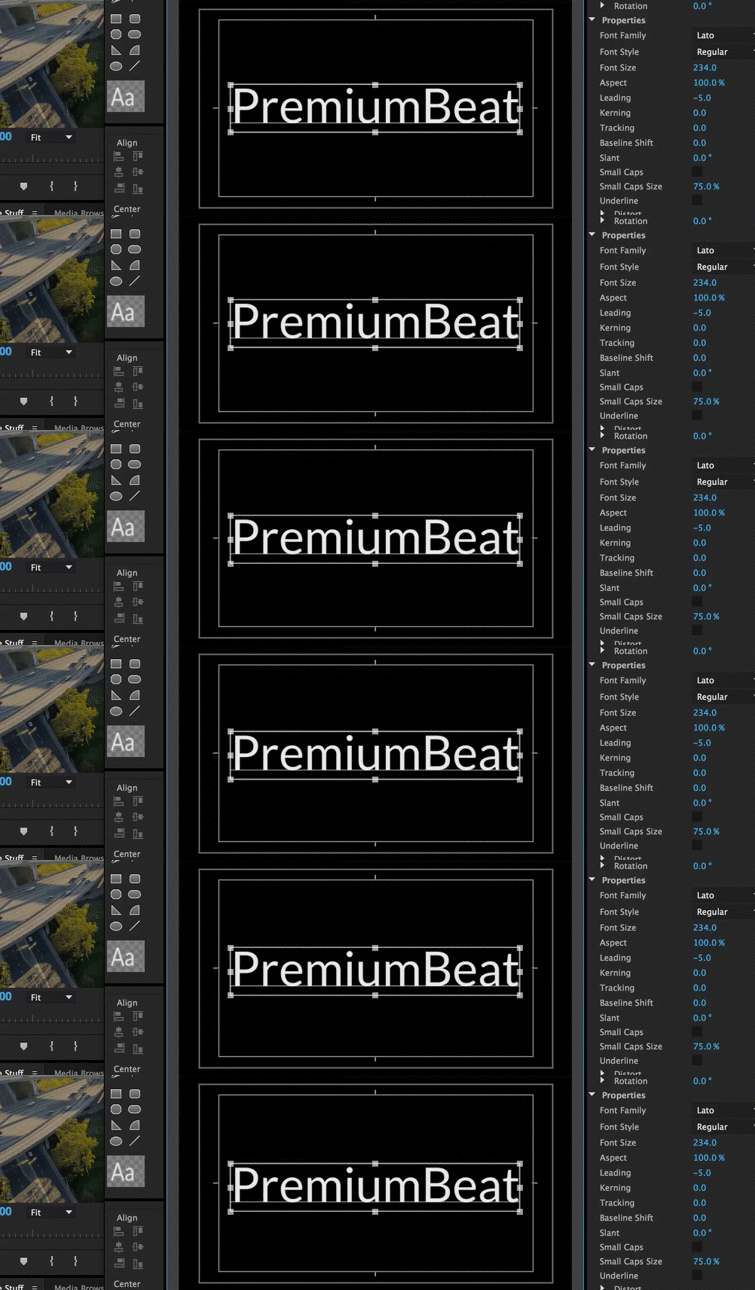
What it Does: Moves your text down one point.
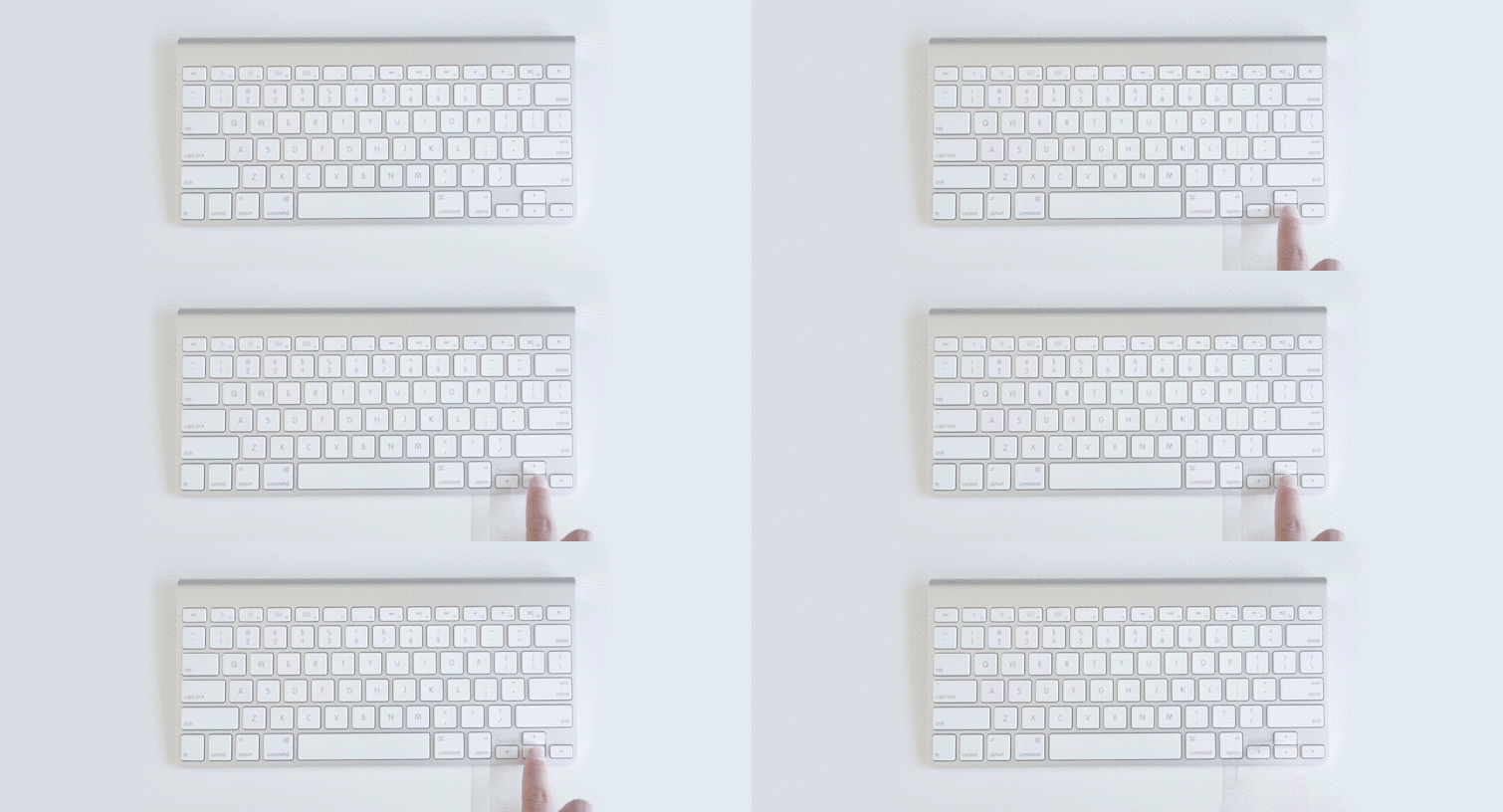
| Mac | Down |
| PC | Down |
18. Nudge Down Five Points

What it Does: Moves your text down five points.

| Mac | Shift+Down |
| PC | Shift+Down |
19. Nudge Left One Point

What it Does: Moves your text left one point.

| Mac | Left |
| PC | Left |
20. Nudge Left Five Points

What it Does: Moves your text left five points.

| Mac | Shift+Left |
| PC | Shift+Left |
21. Nudge Up One Point

What it Does: Moves your text up one point.
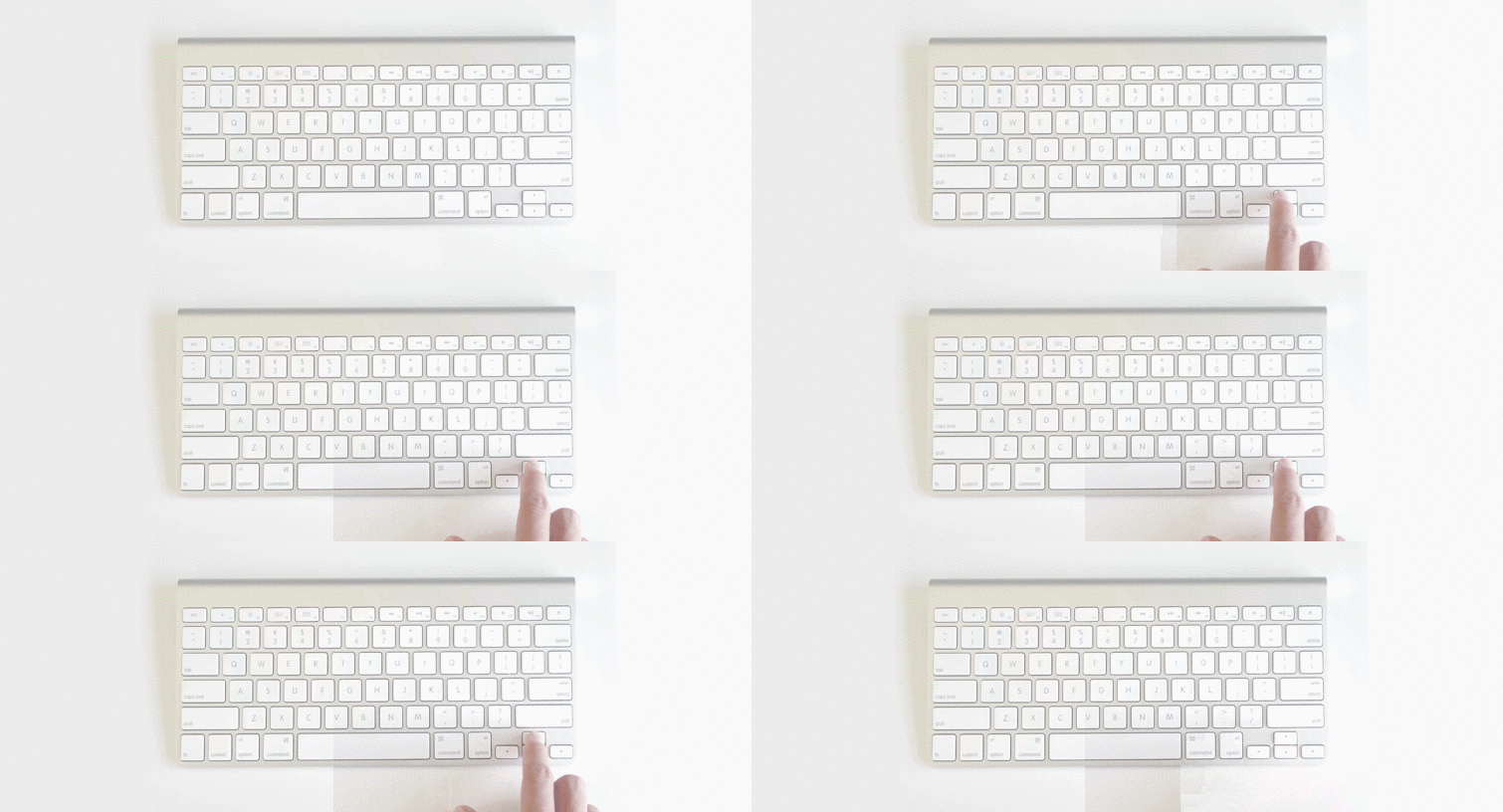
| Mac | Up |
| PC | Up |
22. Nudge Up Five Points

What it Does: Moves your text up five points.
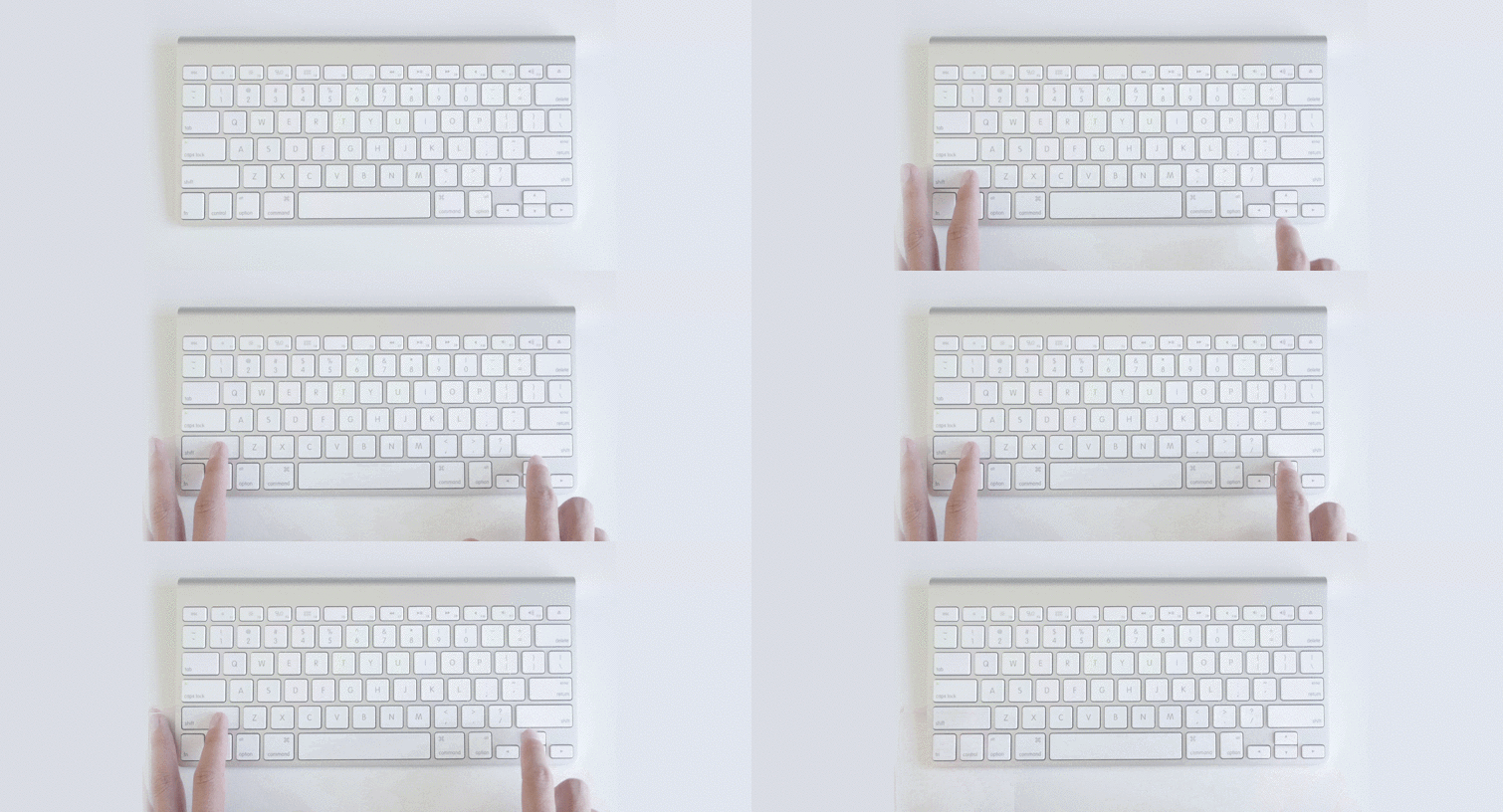
| Mac | Shift+Up |
| PC | Shift+Up |
23. Nudge Right One Point

What it Does: Moves your text right one point.
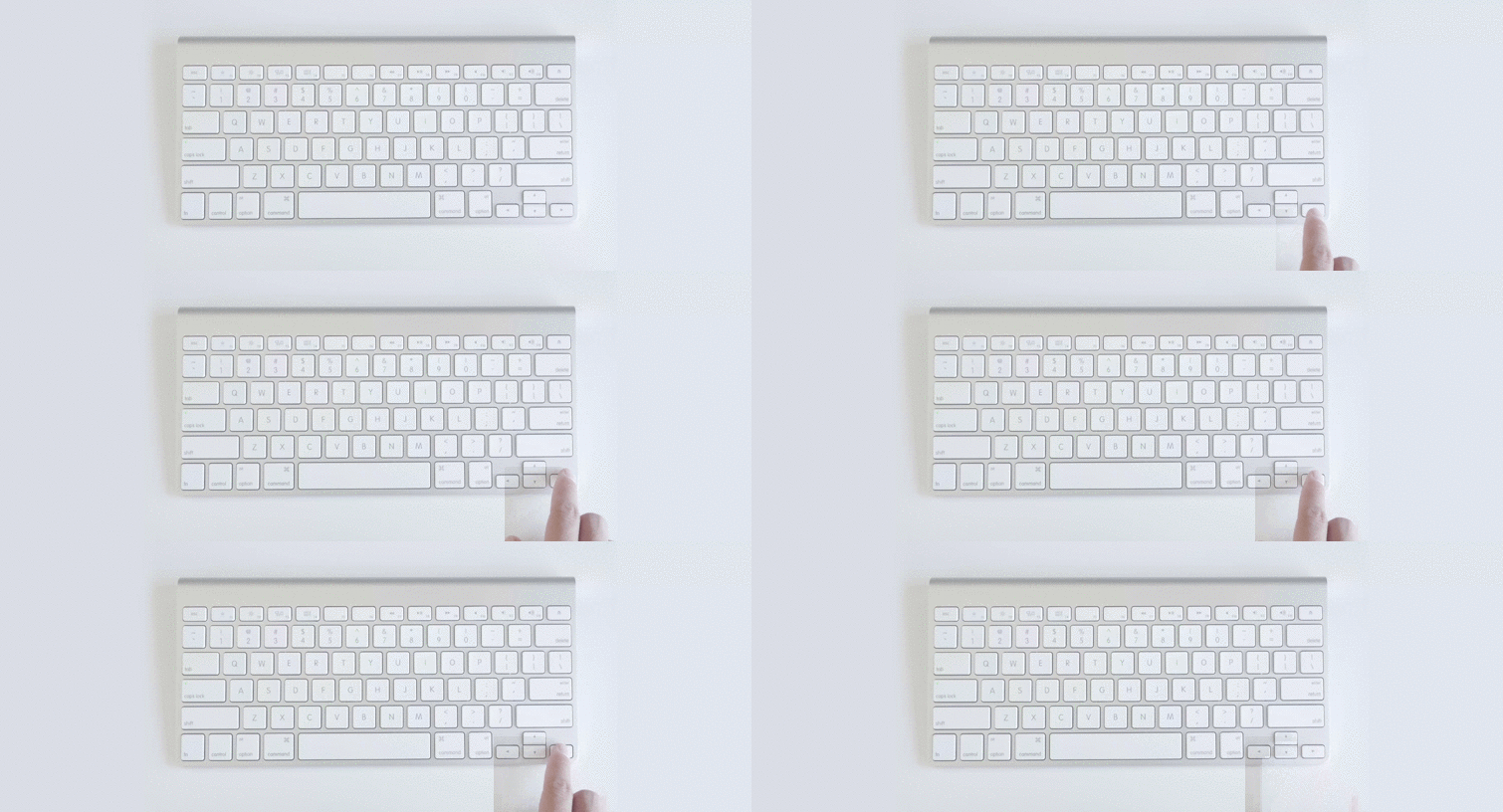
| Mac | Right |
| PC | Right |
24. Nudge Right Five Points

What it Does: Moves your text right five points.
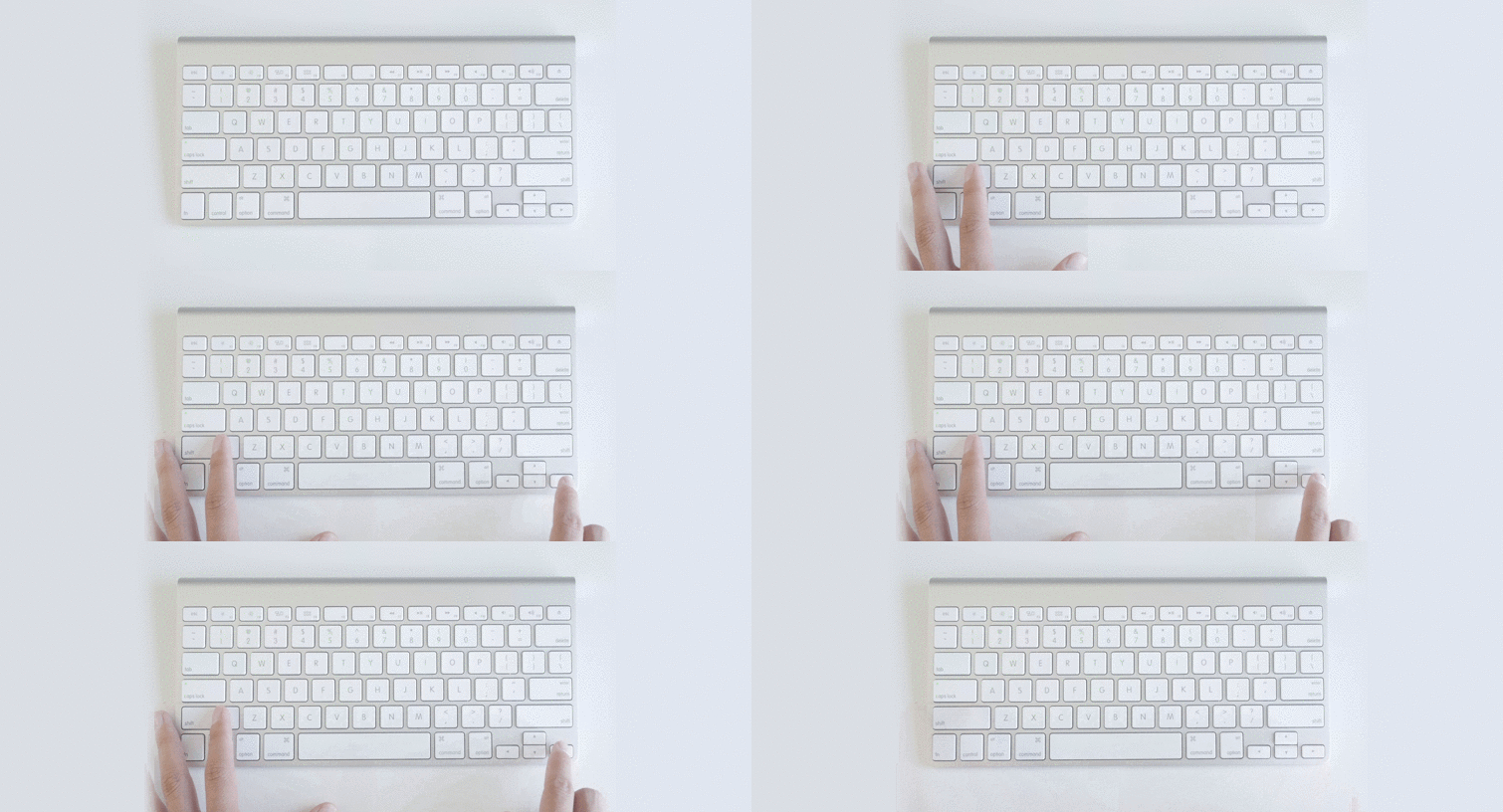
| Mac | Shift+Right |
| PC | Shift+Right |
25. Insert Copyright Symbol

What it Does: Creates a copyright symbol.

| Mac | Opt+Shift+Cmd+C |
| PC | Ctrl+Alt+Shift+C |
26. Insert Registered Symbol

What it Does: Creates a registered symbol.

| Mac | Opt+Shift+Cmd+R |
| PC | Ctrl+Alt+Shift+R |
(Bonus) New Title Based on Current Title

What it Does: Creates a new title based on your current title.
In order to preform this keyboard shortcut, you’ll need to adjust a setting in your keyboard shortcut preferences, which can be found by navigating to File>Keyboard Shortcuts. Johnny Elwyn wrote a post here on PremiumBeat about using this common keyboard shortcut. I highly recommend checking it out if you want to make your title editing even faster.
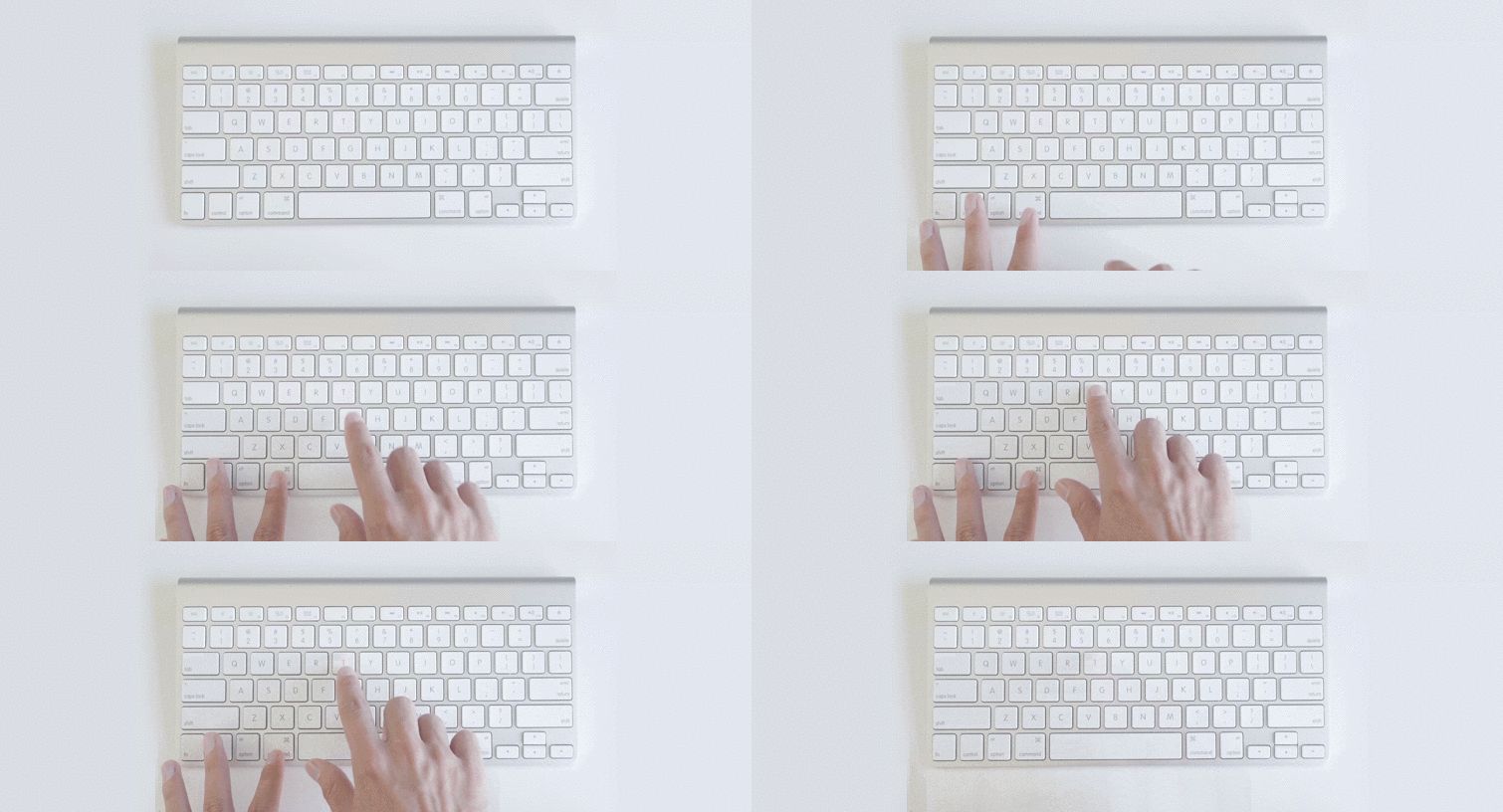
| Mac | Cmd+Shift+T |
| PC | Ctrl+Shift+T |
Know of any other great title design keyboard shortcuts for Premiere Pro? Please share them in the comments below.