
Video Tutorial: Hipster Logos and Badges in After Effects

In this exclusive After Effects tutorial we show you a quick technique for creating an animated hipster badge in Adobe After Effects.

You don’t have to have thick rim glasses to appreciate this After Effects tutorial! The animated hipster badges we’ll create are super trendy…and can really ‘pop’ to your video projects.
Creating a hipster badge/logo is pretty straightforward. The video covers:
- Using shape layers in groups
- Using the graph editor
- Using the merge paths parameter in shape layers
Even if you don’t have a need for a ‘hipster badge’, the technique in this tutorial will work for a variety of logo and icon animations.
Don’t want to watch the video? Follow along with the step-by-step tutorial below. Click any image for larger view.
| 1 | Create a new composition with a solid black circle. |
| 2 | Set keyframes for the ellipses to scale from 0 to 400 in half a second. |
| 3 | Duplicate the ellipses and set the max scale to 450 instead of 400. Add an easy ease keyframe and and smooth out the last keyframe. Offset the larger ellipses by a couple keyframes. |
| 4 | Create a new rectangle in a group. Delete the stroke and add in only a white fill. Scale the rectangle to being 10 pixels wide and 250 px tall. |
| 5 | Set keyframes for the rectangle to scale from 0. |
| 6 | Set the rotation of the rectangle to animate to 45 degrees. |
| 7 | Duplicate the rectangle and rotate to form a cross. Create a new rectangle shape layer. Position it at the bottom of the badge and have it horizontally scale from 0.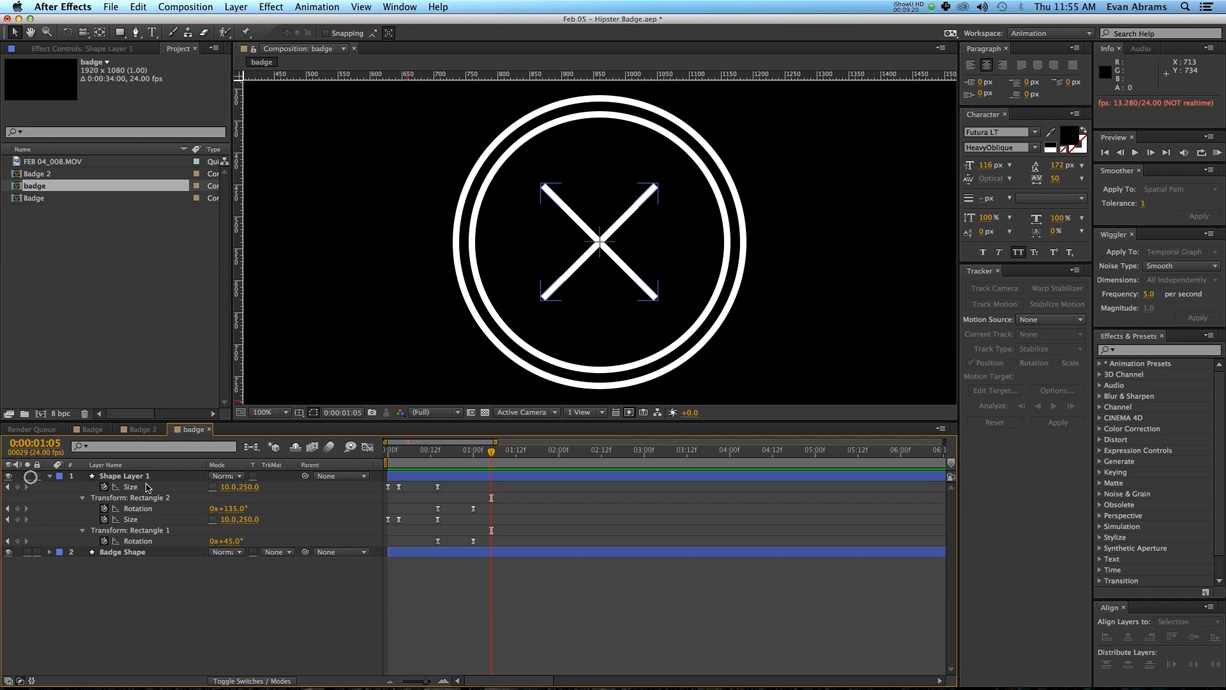 |
| 8 | Add a feathered black shape using the pen tool in the background of the Matte Layer to enhance the depth of field. |
| 9 | Duplicate the rectangle. Scale down and move it to the right side of the badge.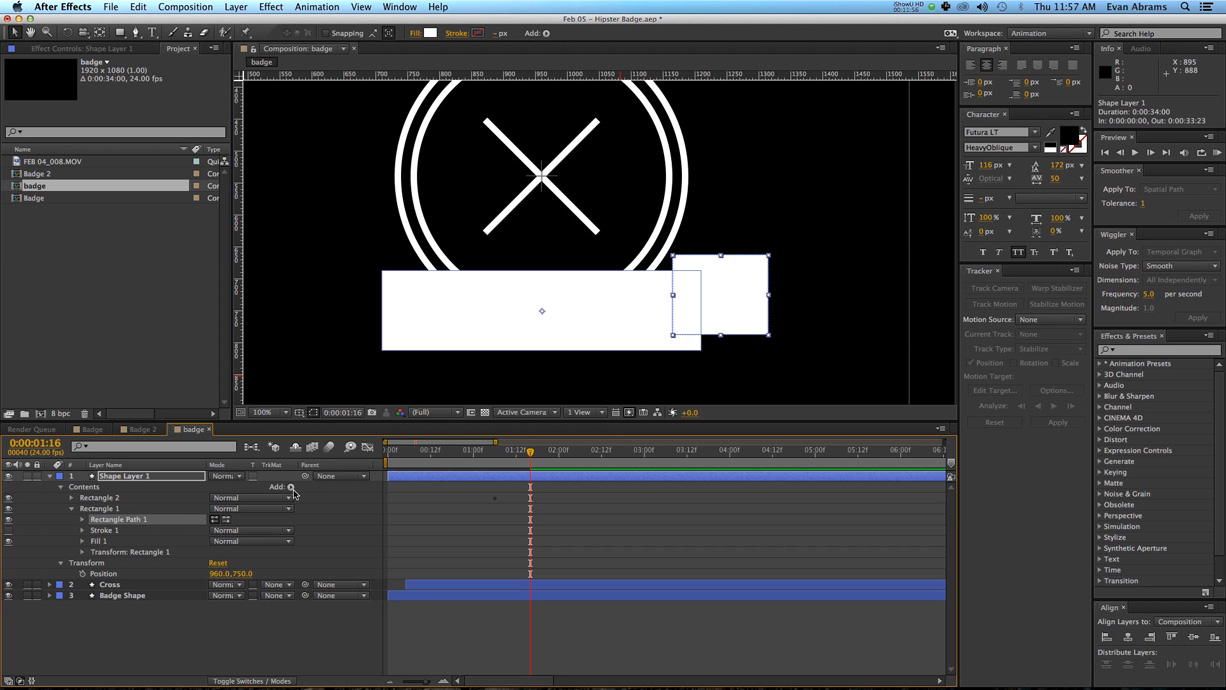 |
| 10 | Create a new polystar. |
| 11 | Change the polystar to polygon and set the points to 4, creating a diamond. Position the diamond over the smaller rectangle.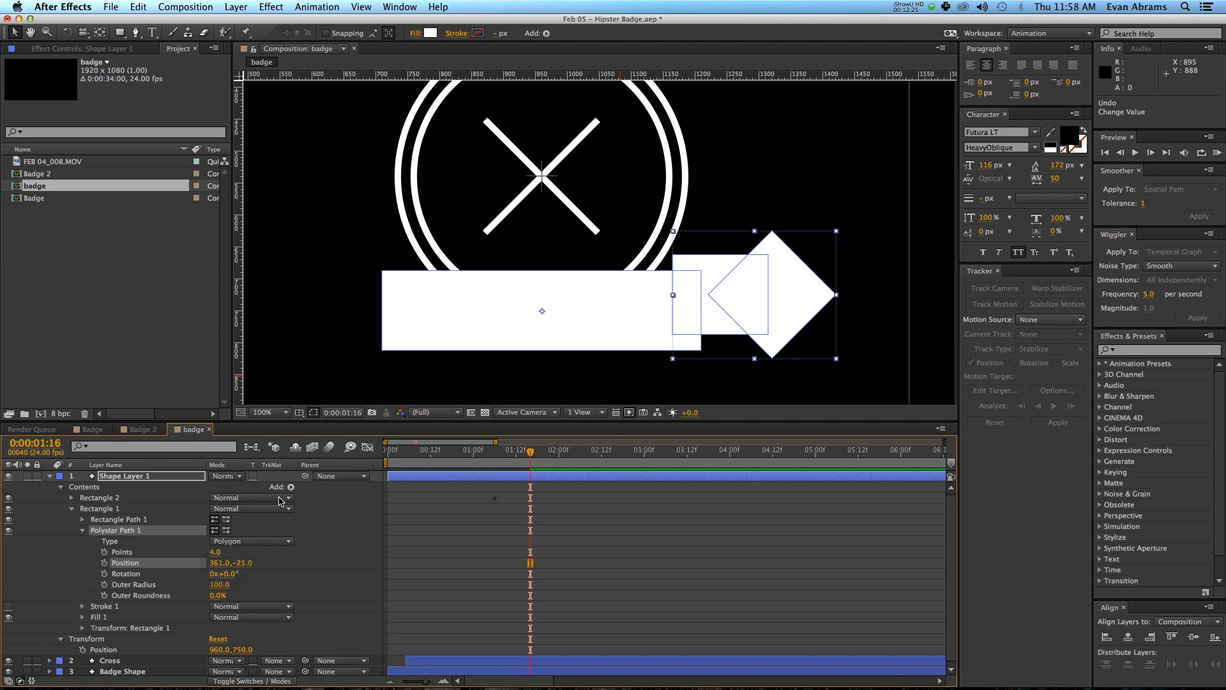 |
| 12 | Add a merge path to the second rectangle group. Set the merge paths to subtract to create a cut off banner.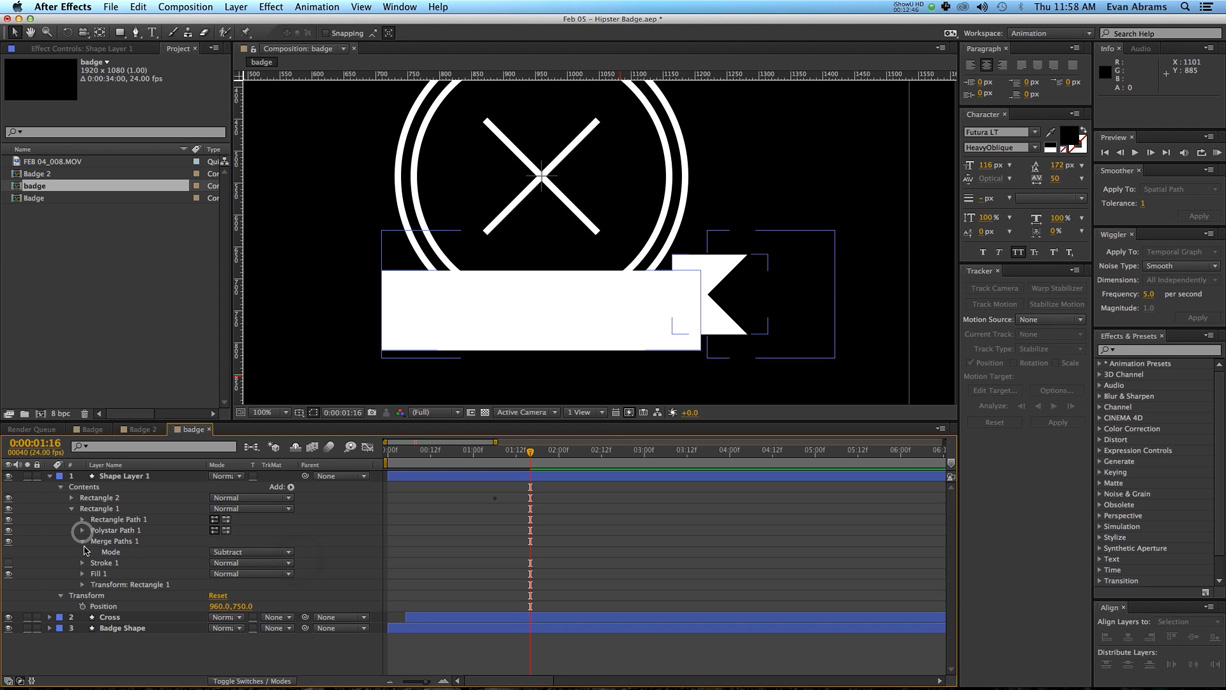 |
| 13 | Set the scale of the rectangle group to scale up over a half second. |
| 14 | Duplicate the cut off badge group and move it to the other side of the banner. |
| 15 | Easy ease all the keyframes to create a mountainous hump.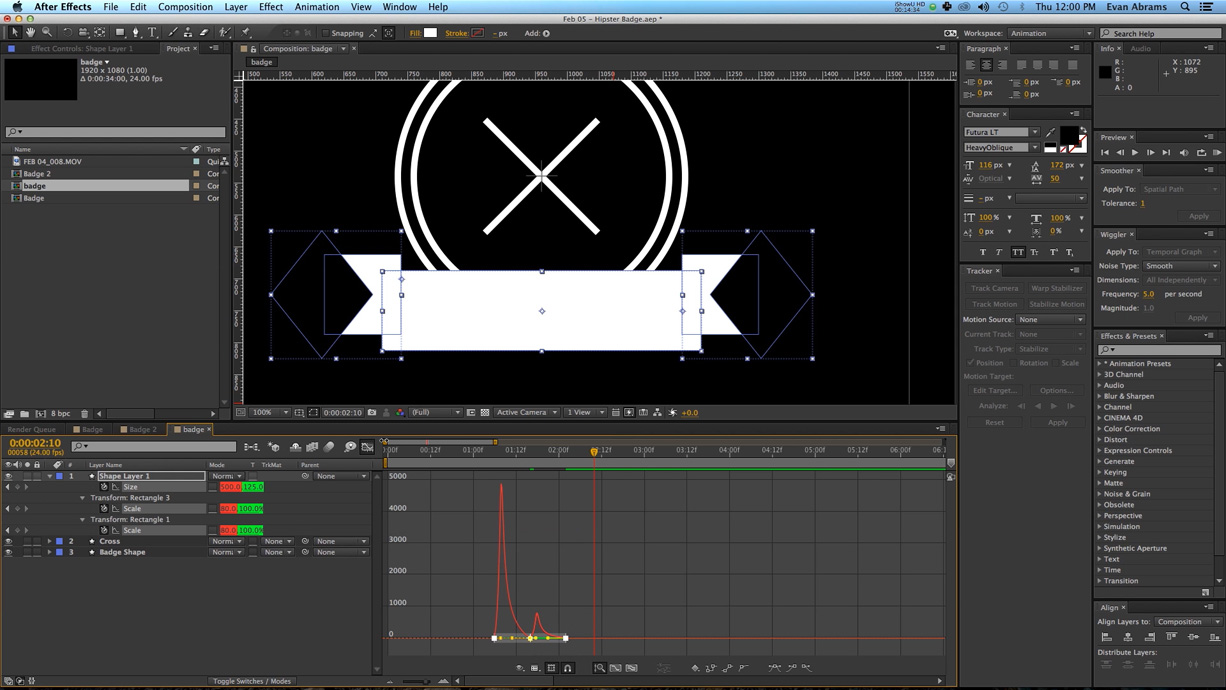 |
| 16 | Create a new text layer and add in your desired text. Make sure it’s a hipster font like Futura! |
| 17 | Animate the scale of the text using the animate parameters…add rotation too.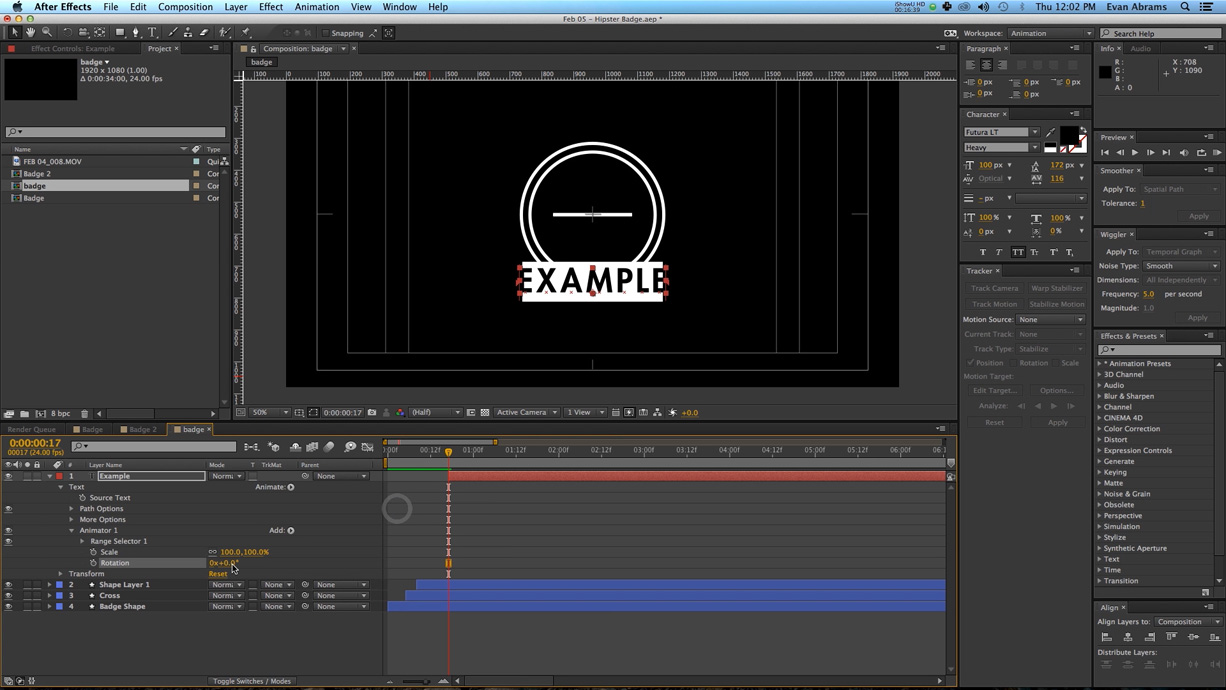 |
| 18 | Have the text scale from 0 and rotate from 90. |
| 19 | Set the grouping alignment to 50. |
| 20 | Set the ease low parameter to 10.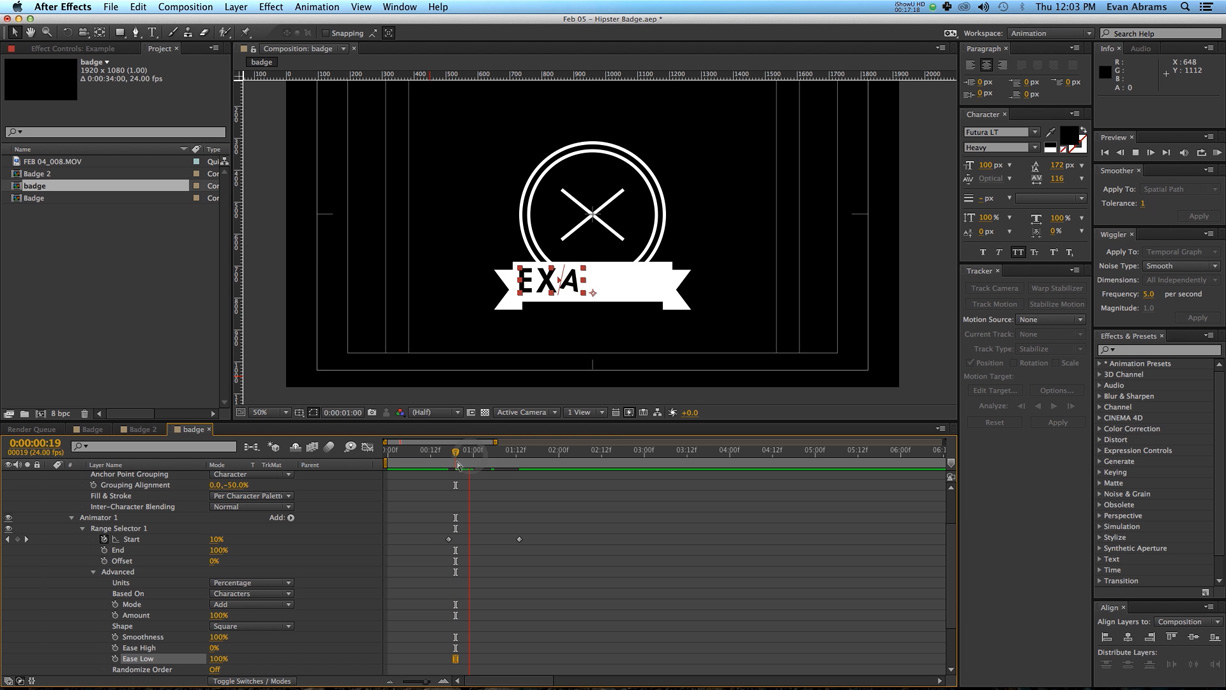 |
| 21 | Duplicate your text and scale down. Change the text to cite when your company was established. |
| 22 | Create a small rectangle for the hyphen. Have it scale horizontally from 0. |
| 23 | Create a new black rectangle to cover the text area.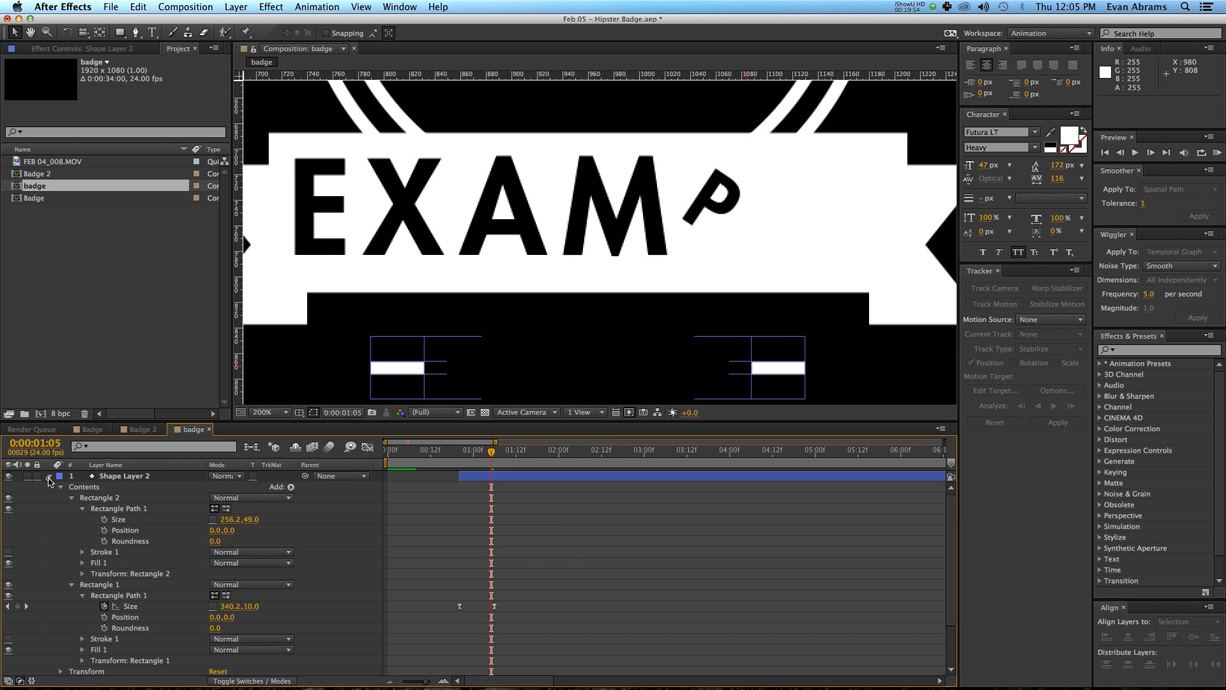 |
| 24 | Add 4 letters to the middle of the “cross”.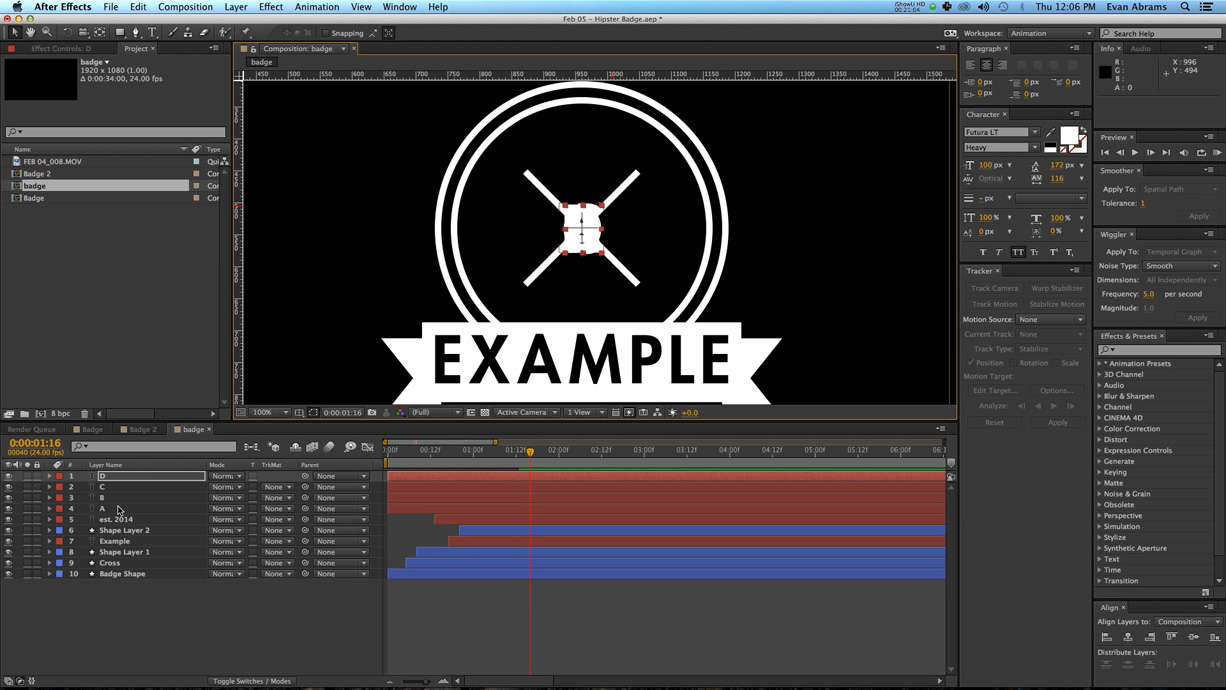 |
| 25 | Move each letter to the gaps in the crosses.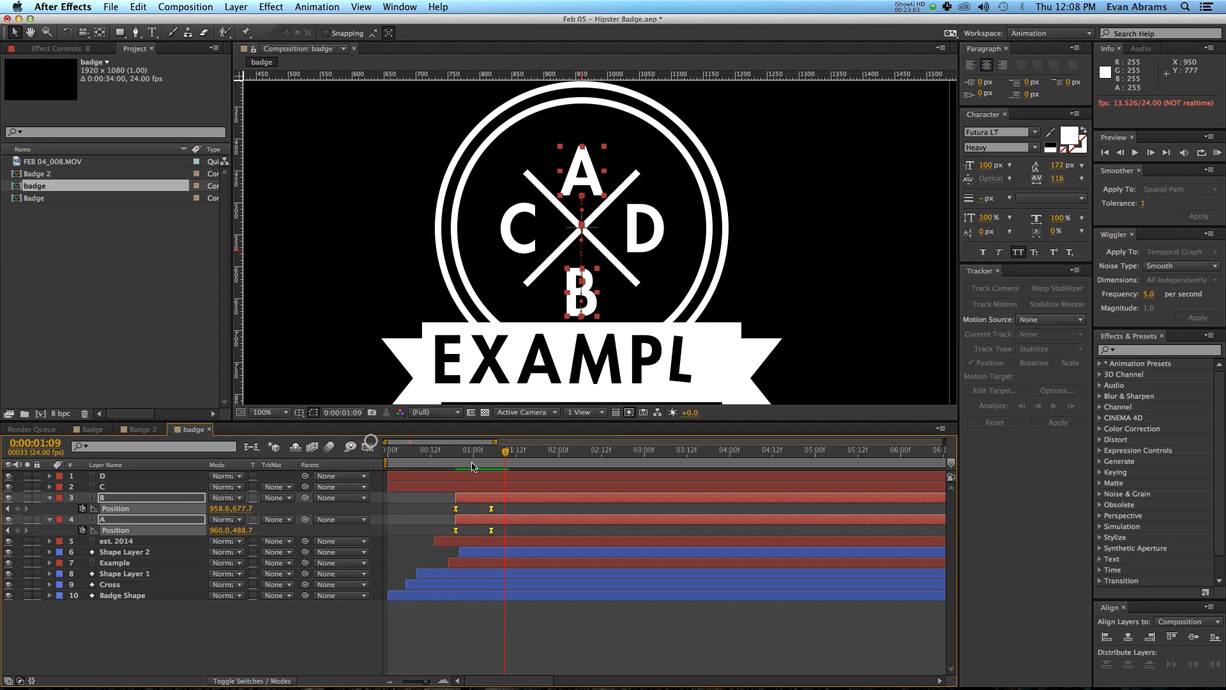 |
| 26 | Set the position of the top and bottom letters to come on as the cross expands. |
| 27 | Create a new black rectangle over the “B” slot.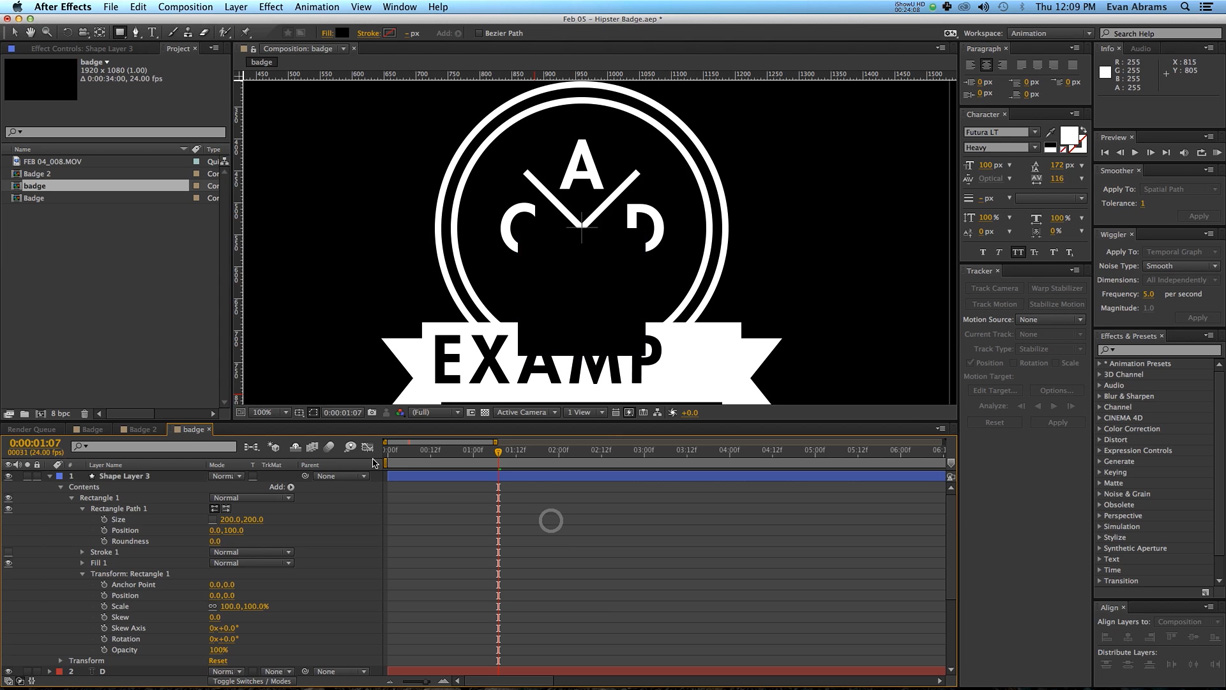 |
| 28 | Duplicate the black square and position it over the A and B spot. Position both rectangles above A and B. Add an alpha and alpha invert the respective letters “A” and “B”.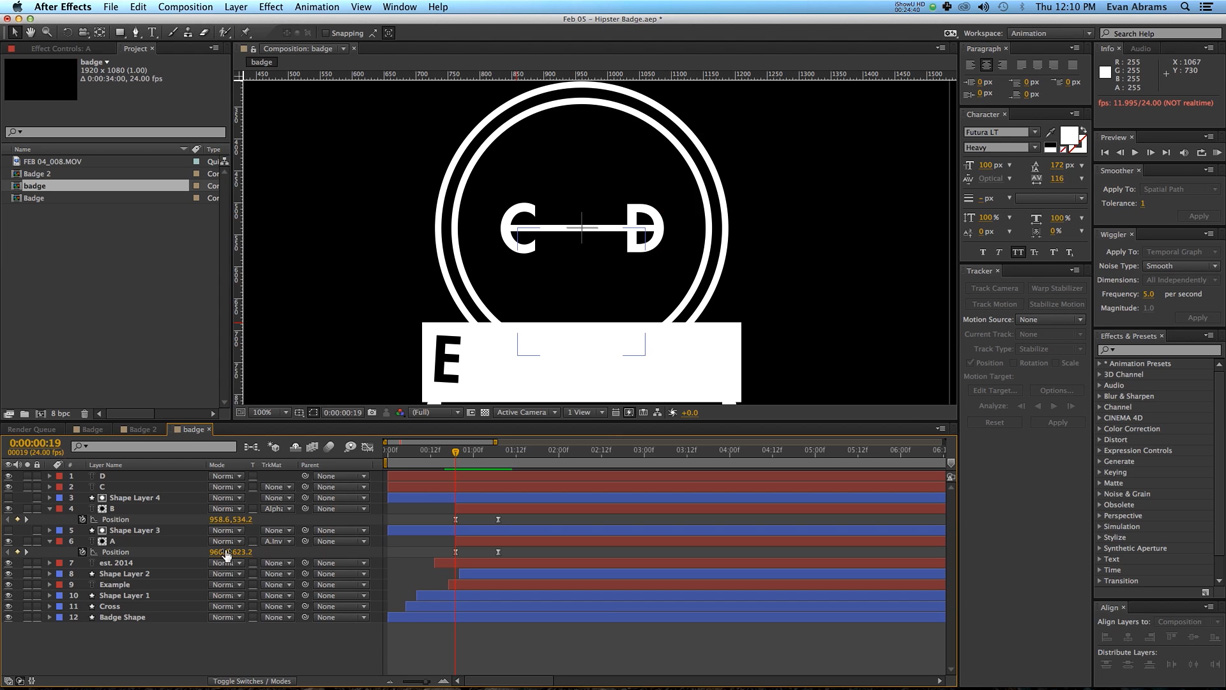 |
| 29 | Duplicate the black rectangles and set rotation parameters – each an inverse of one another to create an overlapping diamond shape. Delete the stroke and fills, then add a merge paths effect set to intersect.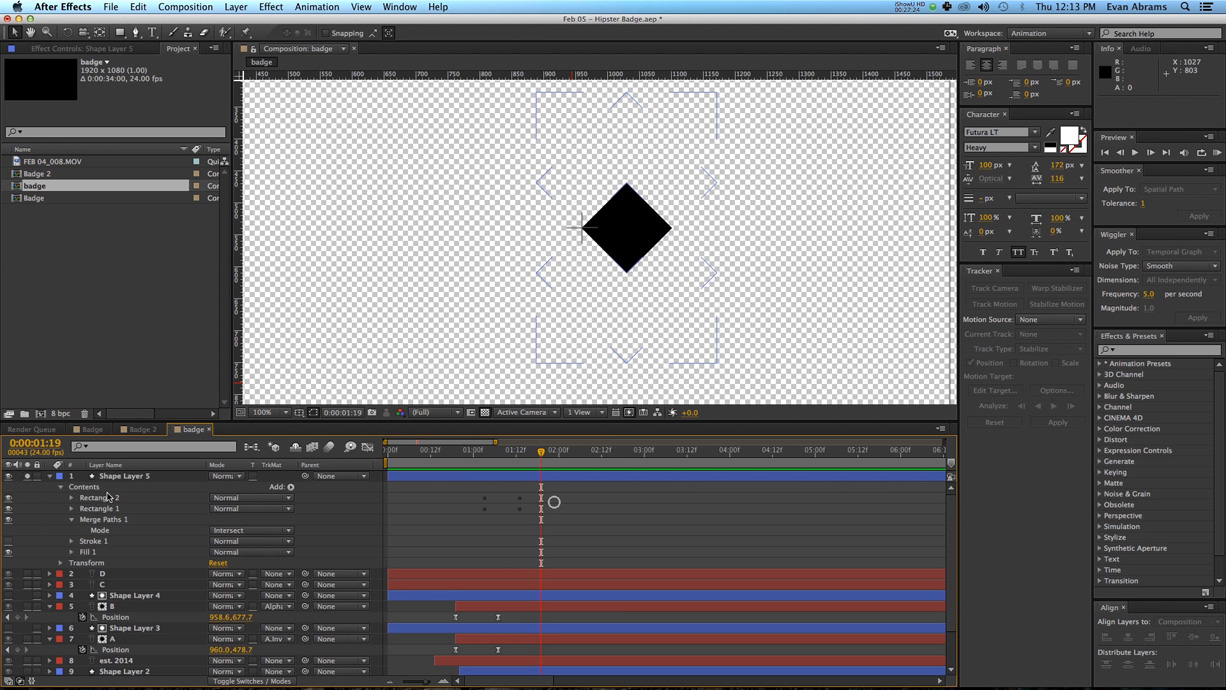 |
| 30 | Easy ease the rotation keyframes.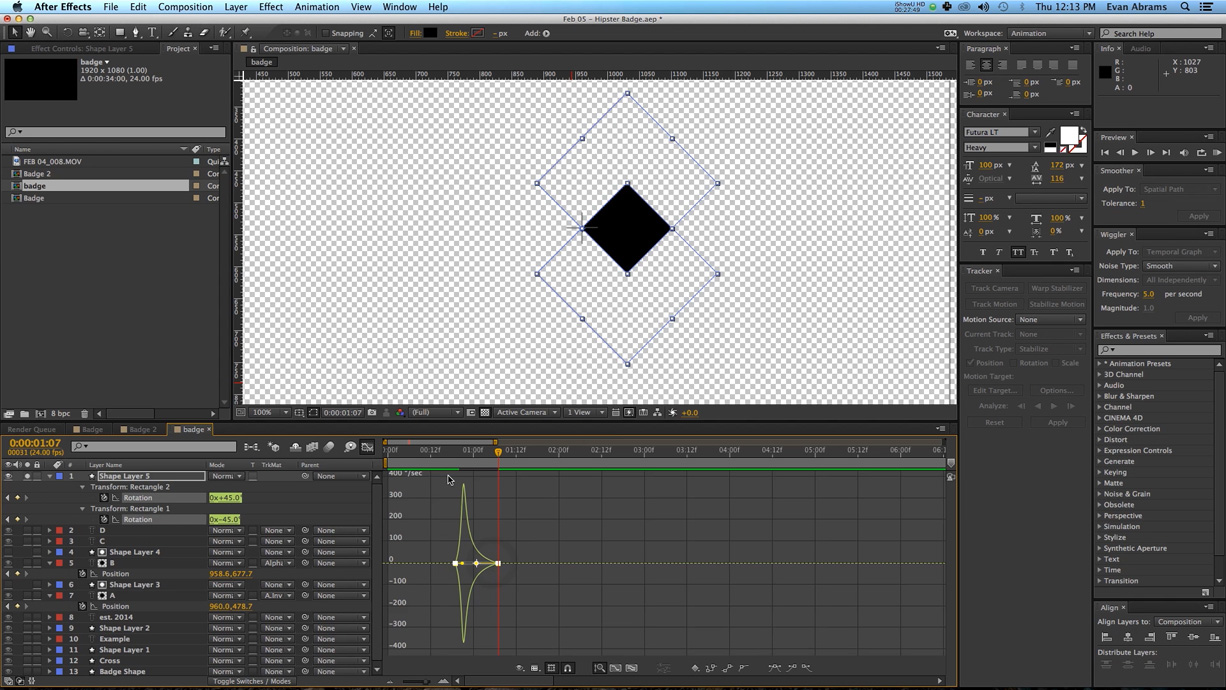 |
| 31 | Set the rectangle as the alpha matt of “D”. Duplicate and rotate and set it as the alpha matte of “C”. |
| 32 | You can composite the composition by setting the composition’s transfer mode to screen.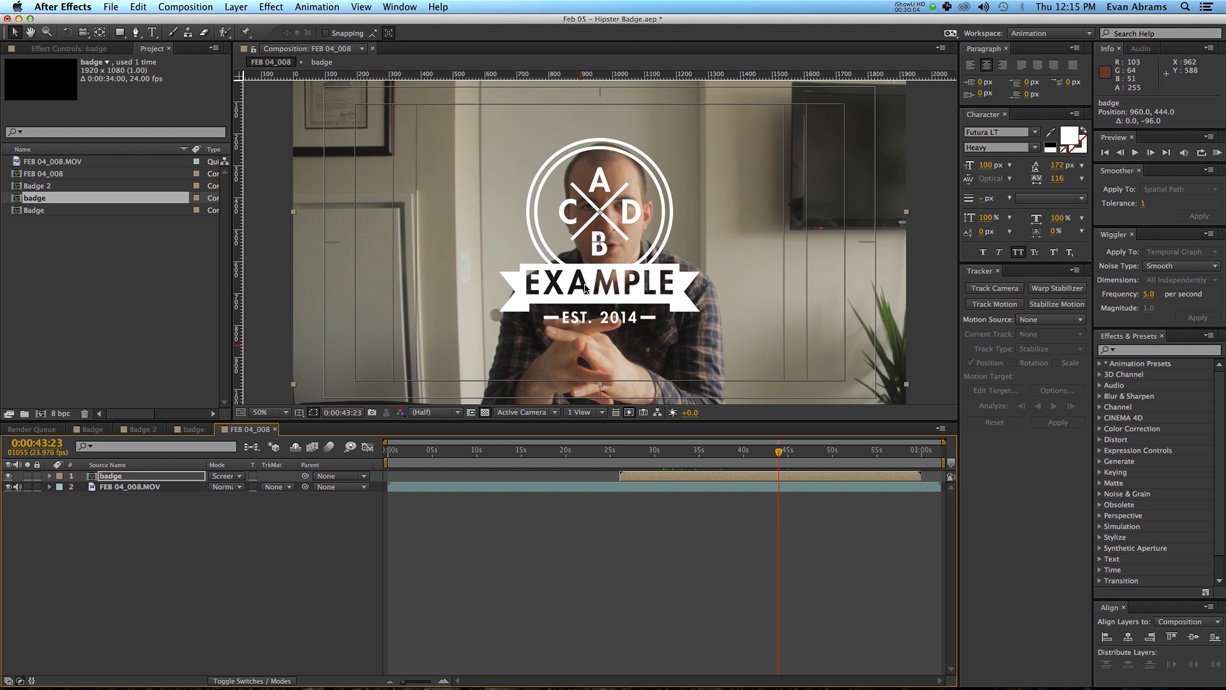 |
| 33 | Use an adjustment layer with a fast blur to blur out the background. |
| 34 | Blur the badge by 1 pixel, duplicate and blur again by 2 pixels. Set the opacity of both to 75.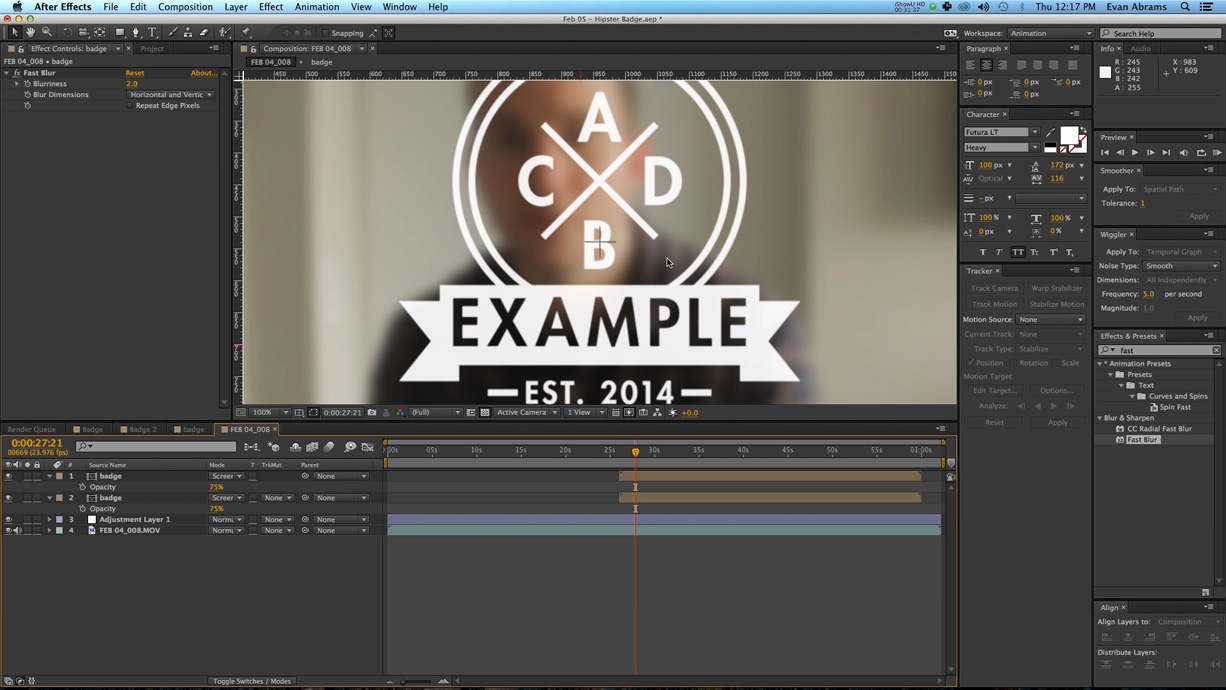 |
Have any suggestions for animating logos and badges in After Effects? Share in the comments below.