The Shreditor’s Guide to Do-It-Yourself Post-Production

Putting your video project together is the final step in the shreditor’s process. Learn how to do it the right way.
Cover image via Shutterstock.
If you’ve already read through “The Shreditor’s Guide” on pre-production and on shooting, then this article on editing will wrap up our series on helping you become an ultimate producing, shooting, editing, video production Shreditor.
For many, editing can be the most tedious part of the video production process, but if you have the right attitude and a good supply of post-production tools, it can actually be the most fun (and in a way, the most important).
Here are some tips, tricks, and resources to give you the editing chops to solve problems and add that extra shine to your videos.
Build Your Workstation
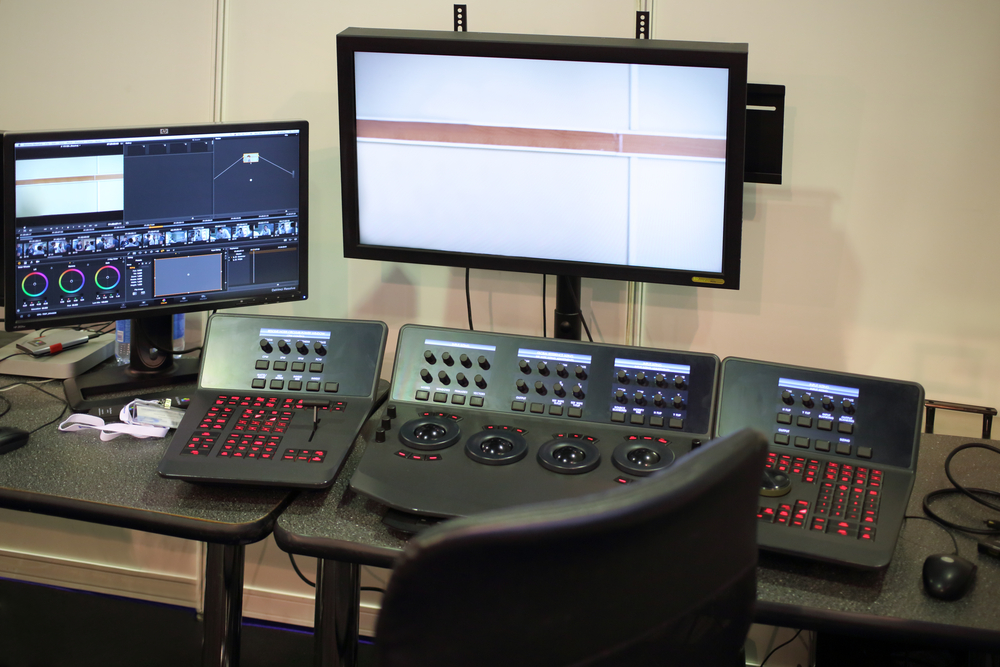
Image via Shutterstock.
While it may be tricky as a shreditor, once you wrap your production and sit down to edit, you need to clear your mind (and close your distracting tabs of emails and calendars) to focus on your final task. A good way to do this is to build your editing workspace into your dark, cool, and quiet sanctuary.
Besides a quiet space where you won’t get too distracted, you also need to build a workstation that can handle all your post-production needs. A solid, up-to-date computer is a good place to start. Here are the system requirements for running Adobe’s Premiere Pro, After Effects, Apple’s Final Cut X and Blackmagic’s DaVinci Resolve (all programs you may want to use).
Some recommendations for desktop macs and PCs here. (Note: these are all new machines, be sure to explore older or refurbished models if you’re interested).
- HP Z240 Workstation — $879
- Dell XPS 8900 Desktop — $1,068
- iMac 27-inch 3.5GHz — $1,999
- MacPro 3.5GHz 6-core — $2,999
While an iMac or PC would be an ideal, it’s also important to note that many shreditors don’t always have the luxury of a home base workstation. For those shreditors on the go, you can build a solid mobile workstation with a good top-of-the-line laptop. Here are some laptop recommendations.
- HP Pavilion 15 — $499
- Dell XPS 15 — $999
- MacBook Pro 13-in 2.3GHz — $1,299
- Lenovo Yoga 720 — $1499
- MacBook Pro 15-in 2.9GHz — $2,799
Here are some more resources for everything else you’ll need to keep in mind for your workstation.
- 10 Things for Your Video Editing Suite Under $200
- Build A Monster Computer for Video Editing & Post Production
- Build a Mobile Suite to Edit Your Projects on Location
External Hard Drives
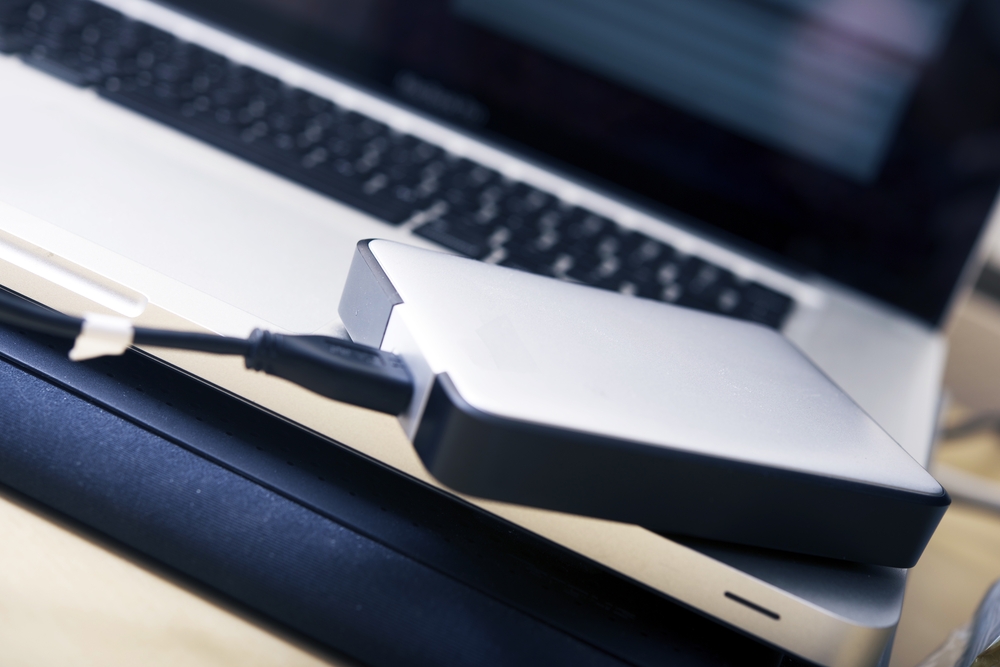
Image via Shutterstock.
No video editing workstation would be complete without a ready stable of fast and reliable external hard drives to store and manage your growing piles of footage and data. Since you are also a producer, you may want to keep backups of all your projects and shoots should you or your clients need them in the future.
Here are some of the best external hard drives currently on the market.
- G-Technology G-RAID 4TB — $179
- Seagate Backup Plus Fast 4TB — $179
- LaCie 4TB (2 x 2TB) Rugged RAID — $365
- WD 6TB My Book Pro Professional RAID Storage — $546
- Glyph Technologies StudioRAID 8TB — $479
You can read more about the above external hard drives here.
Learn Your Editing Programs

Image via Shutterstock.
As we mentioned before, your workstation should be ready to go with your editing software of choice. For this article, we recommend utilizing Adobe’s Creative Suite with Premiere Pro and After Effects being your main options for NLE editing and motion designs. Subscribing to the Creative Cloud also gives you access to programs like Photoshop and InDesign, which can help out with any image tweaks, format conversions, or graphic design needs that may pop up.
Another great program to consider is Blackmagic’s DaVinci Resolve for more in-depth color correction and color grading projects. It also wouldn’t hurt to explore some 3rd-party plugins like Red Giant’s suite of PluralEyes, Magic Bullet Looks, and keying/compositing tools.
Here’s a huge round-up of great resources for learning the above programs (as well as FCX).
- Manage Project Files and Assets Online in the Creative Cloud
- Setting Custom Composition Displays in After Effects
- Black Magic Design’s Final Release of DaVinci Resolve 14
- Take Control Of Your Transitions with The Effects Panel
- Improve Your Edits with Better Audio in Premiere Pro
- Using a Track Matte Key for See-Through Graphics in Premiere Pro
- Shutterstock’s Free Plugin Brings 8 Million + Clips to Premiere Pro
You should also stay tuned and dive back through the PremiumBeat video editing archives here or on RocketStock’s blog.
Ready-To-Go LUTs
Depending on what cameras you shot on, when diving into your footage, it can help to have some ready-to-go LUTs (Look up Tables) to quickly correct and grade your shots. You can create some options on your own by experimenting with your go-to cameras, or you can check out some of these free ones below to tweak as you see fit.
- How to Add LUTs in Premiere Pro (And 35 Free LUTs)
- Hollywood Color: 14 Free Premiere Pro Lumetri Looks
- Wanderlust: 17 Free LUTs to Use on LOG Footage
- 29 Free LUTs for Video
Video Hosting / Client Review / File Sharing Resources
Image via Shutterstock.
Once you’ve worked through your edits and have drafts to share with clients, you’ll need to put back on your producer hat and give them everything they need to review and make suggestions (read: demand changes) for you to dive back into before exporting. There are a couple of options for this, including some new peer review services which can be super helpful.
Both Vimeo and YouTube offer video uploads in private mode where you can share password-protected private links with clients. Vimeo Pro is a great option for better upload speed and quality — as well as recently adding client review features.
You can also use software services like Wipster, Screenlight, and Frame.io for more interactive review sessions and more in-depth track changes and notes. Here are some reviews, write-ups, and tips to consider.
- Wipster Aims to Make Video Critiques Easy for Editors and Clients
- Vimeo Launches Built-in Video Review Tools
- Get Feedback Directly in Premiere With the New Wipster Add-On
- Collaborating in Real-Time: An Editor Reviews the Frame.io-Premiere Integration
Once you’re finally finished (and believe us, just sending a file called “Final Draft” does not count), you’ll need to export and send final videos with all the assets. This is easier said than done. Sending footage is no small task these days. We recommend using a file sharing service like WeTransfer or Dropbox. — The monthly Pro accounts are definitely worth the investment.
That’s it! Hopefully you can take these resources, gear recommendations, and production tips with you as you continue your journey as a producer, shooter, and editor. Stay tuned for more helpful updates on across-the-board production resources.